AI for Teams: what you can actually automate in Microsoft Teams
AI for Teams, sorted by risk: what can run on its own, what needs a person to approve, and what should stay human, with the Microsoft tools that do each.
By the Wopie team · November 13, 2026 · 10 min read
Listen to the summary· 1 min

If you are asking what AI for Teams can actually automate, the honest answer is: a lot of the repeatable work, as long as you sort each job by how much damage a mistake would do. Some jobs can run on their own. Some should run but wait for a person to approve. Some should stay human. Most of the confusion about automating Microsoft Teams comes from treating all three the same.
This guide gives you a simple way to sort your own jobs, shows which Teams tools handle each group, and ends with a one-week plan. It is general information, not security or legal advice.
Why automate work in Teams at all?
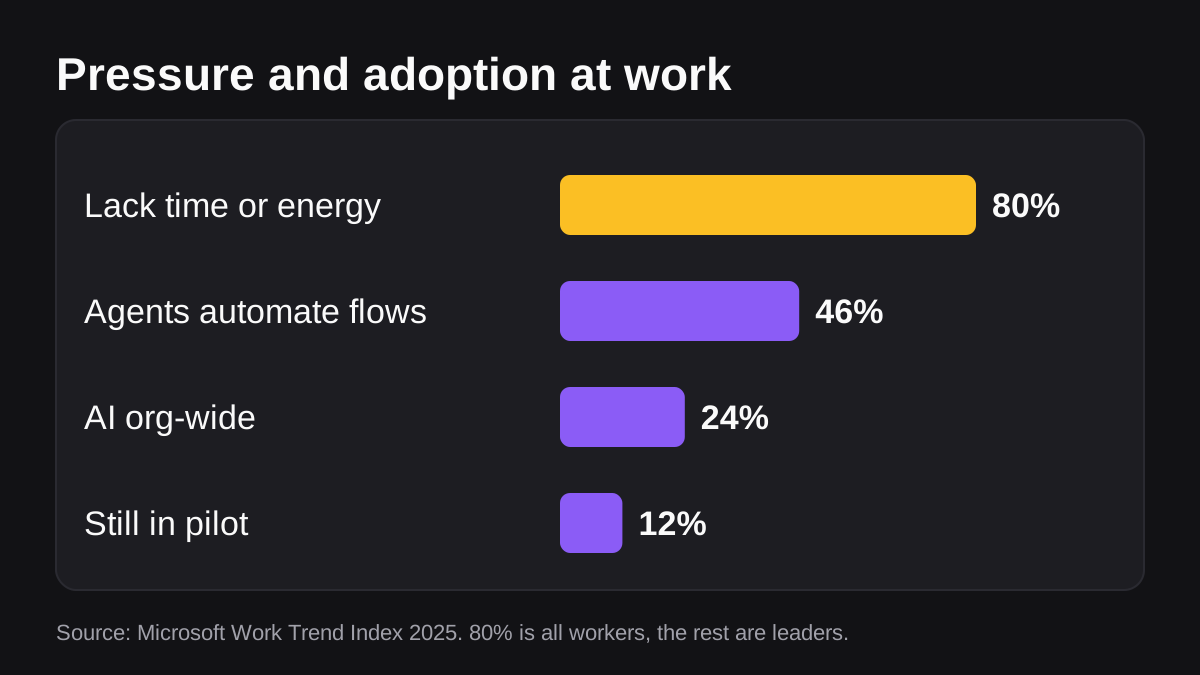
Because the day is already broken up. Microsoft's 2025 Work Trend Index says employees are interrupted every 2 minutes during the workday, and that 80% of the global workforce say they lack enough time or energy to do their work [1]. Those are Microsoft's own figures, so treat them as a signal rather than a promise. But they match what most managers feel: the work that piles up is the repeatable work, such as status updates, reminders, reports and chasing replies.
Automation is the obvious answer, and companies are moving. In the same report, 46% of leaders say their companies are using agents to fully automate workflows or processes, 24% say AI is deployed organization-wide, and 12% remain in pilot mode [1].
Wanting to automate is not the hard part. Knowing what to hand over first is. For that, you need a sorting rule.
What kinds of work can AI and automation take on in Teams?
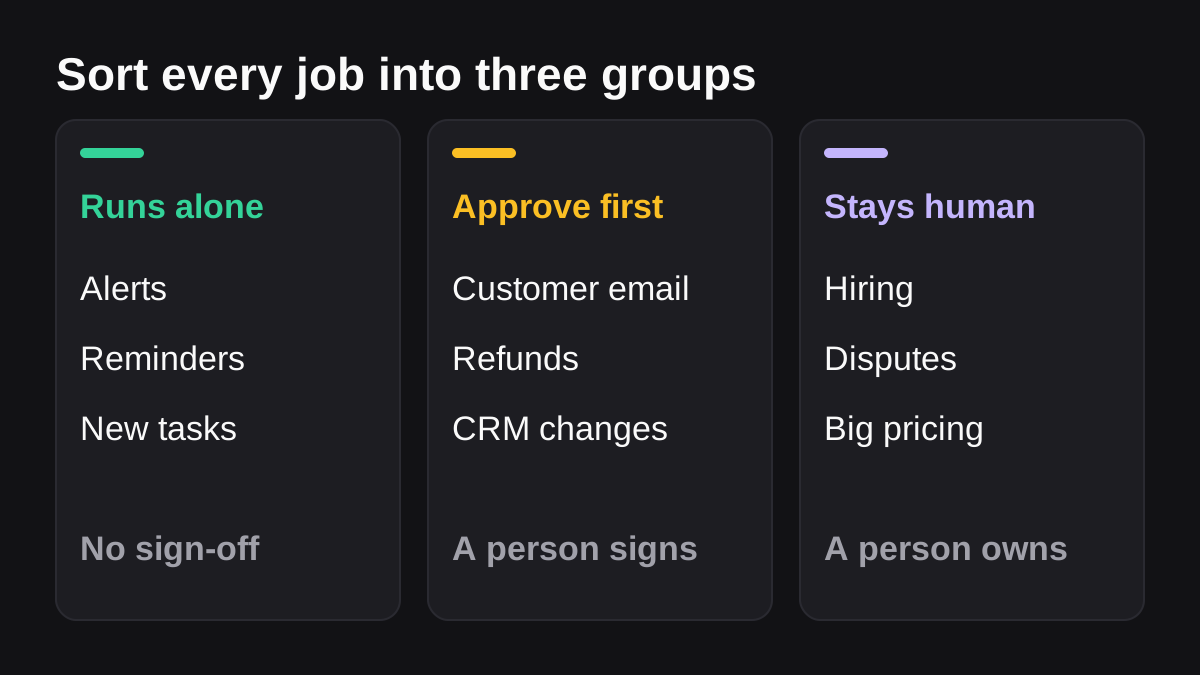
Think of three groups. The names are plain on purpose, because you will use them in conversation with your team.
| Group | What it means | Example jobs in Teams | Who decides |
|---|---|---|---|
| Runs on its own | Low risk, easy to undo, no money or customers involved | Posting an alert, creating a task from a message, a Monday reminder | Nobody, it just runs |
| Runs, then waits | The work is prepared, but the last step is sensitive | Sending a customer email, issuing a refund, changing a CRM record | A named person approves |
| Stays human | Judgment, relationships or legal exposure | Hiring decisions, firing, disputes, pricing a big deal | A person, start to finish |
Read each row as its own rule. The first group is about speed. The second group is about speed with a safety catch. The third group is where you stay in charge.
Most teams find that the first group is smaller than they hoped and the second group is bigger. That is normal, and it is a good sign. The second group is where an AI employee earns its keep, because the preparing is the slow part and the approving takes seconds.
Which Teams jobs can run on their own?
These are the jobs where the worst case is a slightly wrong message in an internal channel. Teams already gives you the tools, and several need no AI at all.
Alerts and notifications
Microsoft's support page describes incoming webhooks as a way for outside applications to share content in Teams chats and channels. It lists templates to send webhook alerts to a channel, to a chat, or only from specific people or people in your organization, and says these templates do not require a premium license [3]. Each template has a different authentication type, so pick the one that matches who is allowed to send alerts [3].
A good use is a payment failure, a new support ticket marked urgent or a build that broke, posted to the channel that cares about it.
Tasks created from messages
Microsoft's Power Automate documentation says you can create manually triggered flows from the overflow menu of a Teams message, using templates that start with the "For a selected message" trigger [2]. That turns a message such as "can someone chase this invoice?" into a tracked action with one click.
Scheduled reminders and routine posts
The Workflows app in Teams lets you build a flow from a template or from scratch [2]. Flows built there are always created in your organization's default environment, and the Workflows app must be enabled in the Teams admin center for this to work [2]. If your admin has not enabled it, ask first.
Here is how to build a simple one.
- In Teams, open Apps, search for Workflows and open it [2].
- On the Create tab, choose a template close to your job [2].
- Name the flow and sign in to each service it uses. A green check means you are connected [2].
- Fill in the parameters, such as the channel to post in [2].
- Add the workflow, then test it on one real example before you trust it.
Where does AI add something here?
Fixed rules cannot read a messy message. They can match a keyword or a form field, and that is about it. AI helps when the input is text that people wrote in their own words, such as "the customer says the export is broken again, can someone look?" An AI step can read that, decide what kind of request it is and route it. If you want to see where that line sits, read how Slack's Workflow Builder compares with AI agents, because the same split applies in Teams.
Which Teams jobs should run, then wait for approval?
This is the group that matters most for a small or mid-sized business. These are jobs where an AI can do most of the effort, but the last step touches a customer, money or a record that other people rely on.
Examples that fit well:
- A weekly pipeline summary that is ready for the sales lead to read and post.
- A batch of overdue invoice reminders drafted for finance to review.
- A customer reply drafted from the ticket history, waiting for a support lead.
- CRM updates proposed from call notes, waiting for the rep to confirm.
The important design choice is where the approval sits. In Teams, the Approvals app is built for this. Microsoft describes it as a way to bring auditing, compliance, accountability and workflows to both structured and unstructured approvals [4]. It is available as a personal app for all Teams users [4].
The audit trail is the real benefit. The app logs events to the Microsoft Purview portal, including created, viewed, approved, rejected, canceled, shared and reassigned requests [4]. Someone who is not a responder or a viewer cannot see an approval created by another person [4]. A person who is part of the chat or channel where the approval was created gets a viewer role, which does not let them act on the request unless they were given that role [4].
Two practical notes from Microsoft's admin page. The first approval created from the app provisions the approval solution in the default Dataverse environment, and deploying it needs a Power Automate, Microsoft 365 or Dynamics 365 license plus permission to create a Dataverse database [4]. And you can disable the app in the Teams admin center if you need to [4]. For a longer walk through, see our guide to approvals in Teams.
What does an AI agent add to an approval?
A plain approval flow asks a person a yes or no question. An agent can do the work before the question: read the ticket, pull the invoice, draft the message and attach the evidence. Then the person approves with the full picture in front of them. That is the idea behind human in the loop, and it is the reason approval steps belong at the end of a job, not at the start.
Which jobs should stay human?
Be honest with your team about this group, because it builds trust in the rest.
- Hiring, firing and performance decisions. These are judgment calls with legal exposure. AI can summarize notes. A person decides.
- Disputes and sensitive customer conversations. Tone and relationship matter more than speed.
- Large deals and pricing exceptions. Prepare the numbers with AI if you like. The decision is yours.
- Anything you cannot explain afterward. If you could not tell an auditor or a customer why something happened, do not automate it.
NIST describes its AI Risk Management Framework as a voluntary framework for managing the risks AI can pose to individuals, organizations and society [7]. You do not have to adopt all of it. The idea behind it is useful as a one-page rule for your team: know what each AI step is allowed to do, know who is accountable and check results on a schedule.
How do you sort a job in three questions?
Use this for every job on your list. It takes about two minutes per job.
- What is the worst thing that could go wrong? If the answer is a wrong note in an internal channel, it can run on its own. If the answer involves a customer, money or a record of truth, it needs approval.
- Can you undo it? A task you can delete is low risk. A sent email or a payment is not.
- Who would have to explain it? If a named person would be asked why it happened, that person should be the approver.
Then match the tool to the group.
| Job type | Tool that fits | What to check first |
|---|---|---|
| Alert from another system | Incoming webhook template [3] | Which template matches who can send |
| One-off task from a message | Message menu flow [2] | The Workflows app is enabled |
| Fixed, repeating post | Workflows app template [2] | Flows live in the default environment [2] |
| Yes or no decision | Approvals app [4] | Licenses and audit log access |
| Multi-step job across tools | An AI agent in a channel | Permissions, and an approval step at the end |
| Meeting notes and tasks | Teams Premium meeting AI [6] | Whether your plan includes it |
On that last row, licensing has moved. Microsoft says that as of April 1, 2026, some features that were previously only in Teams Premium are now included with Teams Enterprise, while Teams Premium continues to offer advanced meeting protection, advanced communication and intelligence capabilities [6]. AI-generated notes and tasks from meetings are listed as Teams Premium features [6]. Ask your admin what your plan includes before you plan around it.
How does an AI agent work inside a Teams channel?
For jobs that need reading across several tools, you add an agent to a channel and give it work. Microsoft's developer documentation explains how this works. An agent installed in a team or group chat can be used by all members, and once installed it can see the list of conversation members and, in a team, the list of channels [5].
The default is conservative. Agents in group chats and channels only receive messages when they are directly @mentioned. They do not get other messages, and they do not get a message when someone replies to the agent without mentioning it [5]. Agents can ask for permission to receive all messages in conversations where they are installed, but Teams does not deliver messages from other agents or bots even then [5].
One limit to know about: private channel support is limited. Agents can be added to private channels where private channel app support is enabled, but they cannot post messages or Adaptive Cards in private channel conversations [5].
Wopie works inside this pattern. You add it to one channel, mention @wopie with the job you would give a new hire, and it reads your connected tools, produces the finished work and pauses anything sensitive for approval. The Teams page shows how that looks in a channel, and the security page covers approval gates and the audit trail.
What does a good first week look like?
Keep it small. You are trying to learn what your team trusts, not to automate everything.
What to do next
- Monday: List 15 repeating jobs. Write one line for each: who does it, how often, how long it takes.
- Tuesday: Sort each into the three groups using the three questions above.
- Wednesday: Build one job from the first group in the Workflows app, such as an alert or a reminder [2].
- Thursday: Pick one job from the second group, such as a weekly report, and decide who approves it. Use the Approvals app or an approval step in your agent [4].
- Friday: Ask your admin to confirm which apps are allowed and which licenses you have [6].
- Next Monday: Review what ran, what was corrected and what people ignored. Move jobs between groups based on what you saw.
If you want a longer list of first jobs, read which jobs to give an AI employee first. If the second group looks like most of your list, pricing explains what running an agent in one channel costs.
The goal is not full automation. It is fewer interruptions, with a person still in charge of anything that matters.
Put an AI employee in Microsoft Teams.
Wopie joins your Teams channels, takes on the reports and follow-ups, and checks with you before anything goes out.
See Wopie for TeamsSources
- [1]2025: The year the Frontier Firm is born · Microsoft WorkLab (Work Trend Index Annual Report) · accessed Nov 13, 2026
- [2]Create flows in Microsoft Teams - Power Automate · Microsoft Learn · accessed Nov 13, 2026
- [3]Send messages in Teams using incoming webhooks · Microsoft Support · accessed Nov 13, 2026
- [4]Manage the Approvals app in Microsoft Teams - Microsoft Teams · Microsoft Learn · accessed Nov 13, 2026
- [5]Channel and Group Conversation Chat for Agents - Teams · Microsoft Learn · accessed Nov 13, 2026
- [6]Microsoft Teams Premium licensing - Microsoft Teams · Microsoft Learn · accessed Nov 13, 2026
- [7]AI Risk Management Framework | NIST · National Institute of Standards and Technology (NIST) · accessed Nov 13, 2026