How to use AI in Microsoft Teams beyond Copilot: four layers and what each one does
How to use AI in Microsoft Teams: meeting recaps, Workflows and Approvals, built-in agents and outside agents, plus the admin checks to run first.
By the Wopie team · October 20, 2026 · 10 min read
Listen to this article· 12 min

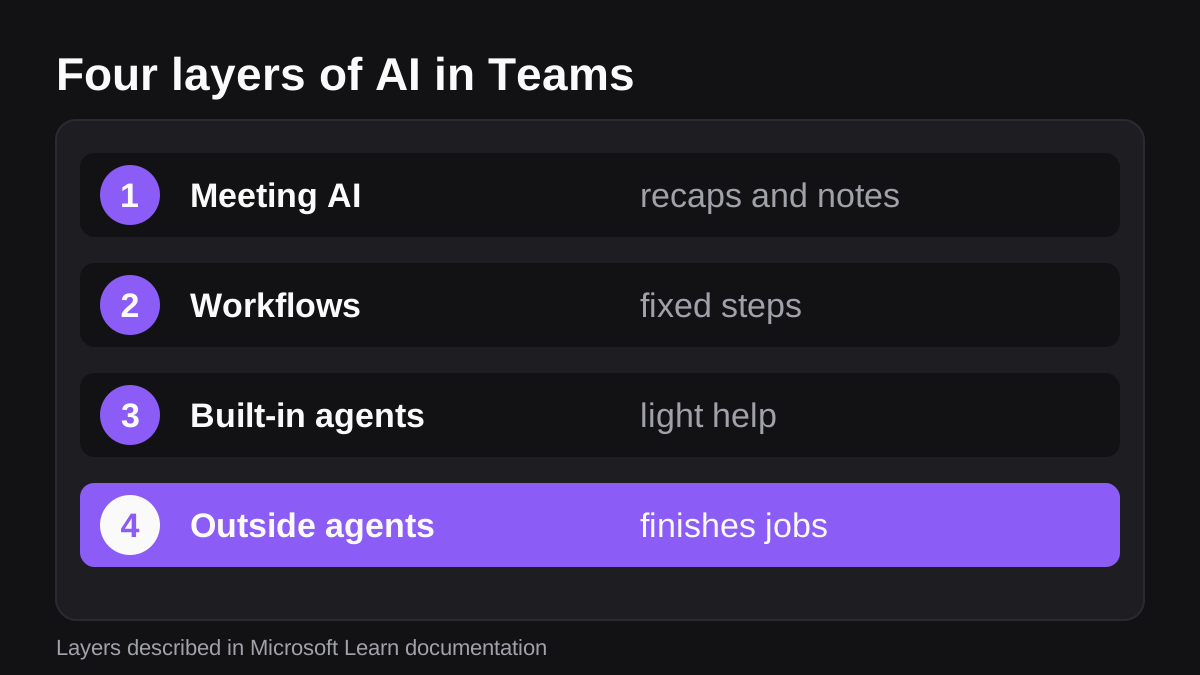
If you are wondering how to use AI in Microsoft Teams without buying a single big license, the short answer is that there are four layers, and Copilot is only one way into them. The first layer is the AI that Microsoft builds into meetings. The second is the workflow and approvals tools that ship with Teams. The third is the agents Microsoft embeds in Teams itself. The fourth is outside agents that you add to a channel and give a job.
Most small and mid-sized teams get the most value by mixing layers. Use meeting AI to remember what was said. Use Workflows and Approvals for fixed, repeatable steps. Use an agent in a channel for work that needs judgment and several tools, and keep a person in the loop for anything that leaves the building.
This guide walks through each layer, what it needs from you, where it stops, and the admin checks to run before anyone installs anything. It is general information, not legal or security advice.
What AI can you use in Microsoft Teams without Copilot?
You can use more than you might think. Teams already includes tools that are not tied to a Copilot license. Some are paid add-ons, some are free, and some only need an admin to switch them on.
Here is a plain map of the four layers.
| Layer | What it does | Best for | Main limit |
|---|---|---|---|
| Meeting AI | Recaps, notes, tasks and translated captions | Remembering what was decided | Reads meetings, does not do the follow-up work |
| Workflows and Approvals | Runs fixed steps and collects yes or no decisions | Repeatable, rule-based tasks | Only does what you set up in advance |
| Built-in Teams agents | Microsoft's own agents inside chats, channels and meetings | Light help inside Teams | Limited to what Microsoft ships |
| Outside agents | Take a job, use your tools, produce finished work | Multi-step work across systems | Needs careful permissions and approvals |
Read each row on its own: meeting AI helps you remember, workflows run fixed rules, built-in agents give light help, and outside agents do the jobs that need reading and writing across your tools.
What does meeting AI in Teams actually do?
Meeting AI is the easiest layer to start with, because it needs no integration and nobody has to learn a new habit.
Microsoft's licensing page for Teams Premium lists AI-generated notes and tasks from meetings, recaps for meetings you missed, live translated captions and transcripts, autogenerated chapters in recordings, and speaker timeline markers [6]. These sit on top of a standard Teams license, because Teams Premium does not replace it [6].
Licensing is changing, so check before you buy. Microsoft says that as of April 1, 2026, some features that used to be Teams Premium only are now included with Teams Enterprise, while Teams Premium continues to offer advanced meeting protection, advanced communication and intelligence capabilities [6]. Your admin can tell you which of these your plan includes.
Where does meeting AI stop?
It reads and summarizes. It will give you a clean list of action items after a Monday planning call. It will not open your CRM, update the forecast and post the result. That is a different job, and it belongs to the next layers.
Meeting AI also raises a privacy question that is worth a short team rule. On Teams Premium, an organizer can control who can record and transcribe [6]. Decide who should be allowed to, and tell people when a meeting is being transcribed.
How do Workflows and Approvals help in Teams?
The second layer is not AI in the strict sense, but it is where most teams should start for anything that follows fixed rules. It is cheap, predictable and easy to audit.
How do you build a workflow in Teams?
Microsoft's Power Automate documentation lists three ways to create flows inside Teams. You can use templates from the Teams store, you can create a flow from the overflow menu of a message, or you can use the Workflows app to build from a template or from scratch [4]. Anything you build in the Workflows app is created in your organization's default environment [4]. The Workflows app also has to be enabled in the Teams admin center for this to work [4].
Here is how to build a simple one.
- In Teams, open Apps, then search for Workflows and open it.
- Choose a template that fits the job, such as posting a reminder when a form is submitted.
- Name the flow and sign in to each service it uses.
- Fill in the parameters, such as the channel and the people to notify.
- Add the workflow, then test it once with a real example before you rely on it.
A message-menu flow is useful for one-off jobs. Microsoft says you can create manually triggered flows from the overflow menu of a Teams message, using templates built for a selected message [4].
How does the Approvals app fit in?
Approvals is where AI work should usually end. Microsoft describes the app as a way to bring auditing, compliance, accountability and workflows to both structured and unstructured approvals in Teams [5]. It is available as a personal app for all Teams users [5].
There are some setup details to know. The first approval created from the app triggers provisioning of the approval solution in the default Dataverse environment [5]. Deploying it needs permission to create a Dataverse database, a Power Automate account, the administrator role in the target environment and a license for Power Automate, Microsoft 365 or Dynamics 365 [5].
The audit trail is the real benefit. Approval activity is logged in the Microsoft Purview portal, including created, viewed, approved, rejected, canceled, shared and reassigned requests [5]. People who are not the responder or a viewer cannot see an approval created by someone else [5].
A good rule of thumb: let the tool prepare, and let a person press approve. If you want a deeper walk through of that pattern, see how Slack's Workflow Builder compares with AI agents, which applies equally well to Teams.
What are built-in Teams agents?
The third layer is agents that Microsoft embeds directly in Teams. Microsoft's admin documentation names the Channel Agent and the Facilitator as examples, and says they are built into core Teams experiences and do not need installing from the app store [3].
They are managed separately from other apps. An admin goes to the Built-in Teams agents page in the Teams admin center and can make an agent available to everyone, to specific users or groups, or to no one [3].
These agents suit light, shared help inside Teams. If you want to understand where an agent ends and an assistant begins, read how AI agents differ from assistants and automation tools.
How do outside AI agents work in a Teams channel?
The fourth layer is the most capable one. An outside agent is an app you install into a team or group chat, then give work by @mentioning it.
Microsoft's developer documentation explains the mechanics. An agent installed in a team or group chat can be used by all members of that conversation, and once installed it can see metadata such as the list of members and, in a team, the list of channels [1]. By default, an agent in a channel only receives messages where someone @mentions it directly. It does not see other messages, and it does not get a message if someone replies to its post without mentioning it [1].
That default is good news for privacy. It means an agent is not silently reading every channel conversation.
Can an agent read the whole channel?
Only with permission. An agent can declare resource-specific consent permissions so it can receive all channel messages or all group chat messages, and the team or chat owner must consent when it is installed [2]. Microsoft notes that these permissions do not give an agent access to additional conversations, only to additional messages in conversations it can already reach [2].
Microsoft also says that agents that do not benefit from full message access can reduce processing load and privacy concerns by keeping the @mention limit [2]. For most jobs, the @mention default is enough. You give the agent a task in a post, and it works on that task.
What are the limits to know about?
Two limits matter for a small team. First, support for agents in private channels is limited. Agents can be added in private channels where private channel app support is on, but they cannot post messages or Adaptive Cards in private channel conversations [1]. Second, in organizations on Microsoft 365 Government plans, all third-party agents and apps are blocked by default [3]. If you are in one of those, your admin has to allow them first.
What does a good job look like for an outside agent?
The best jobs repeat, draw on more than one system, and end in a document or message that a person would otherwise write by hand. A weekly pipeline summary, a Monday operations brief, a month-end pack or a batch of overdue invoice reminders all fit. For help choosing, see which jobs to give an AI employee first.
Wopie works this way in Teams. You add it to one channel, mention @wopie in a post with the work you would give a new hire, and it reads your connected tools, finishes the job and pauses anything sensitive for approval. The Teams page shows how a job looks in a channel.
What should your Teams admin check before you add an AI agent?
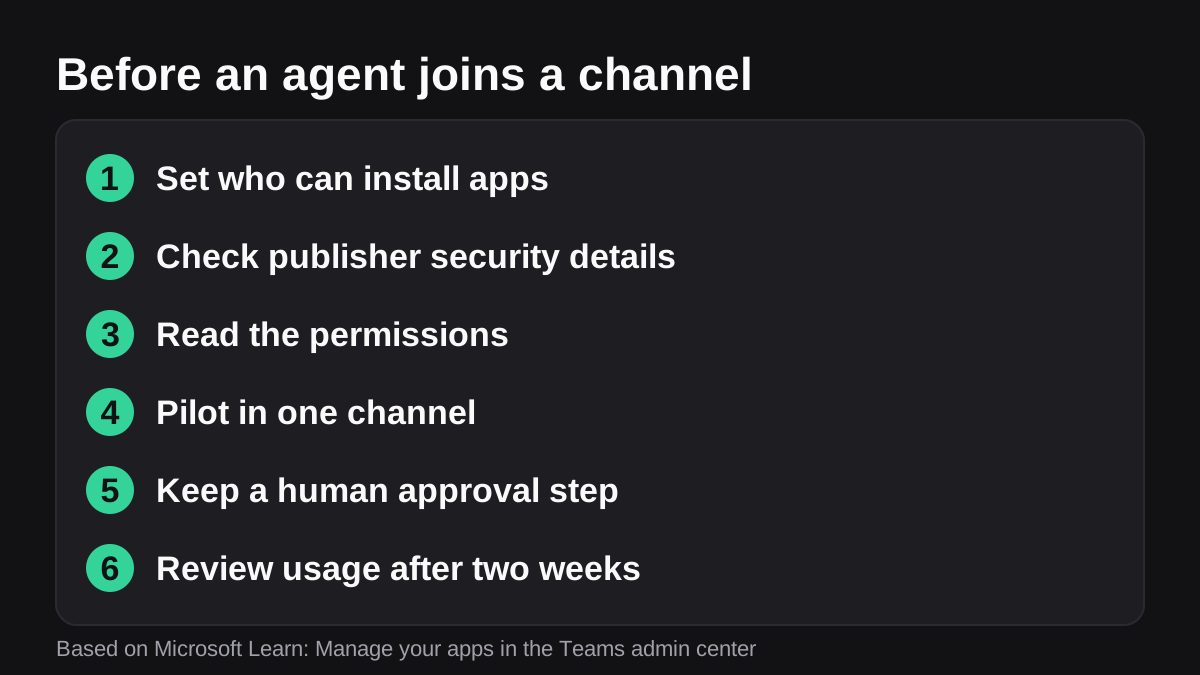
Before anyone installs an agent, an admin should run a short check. Microsoft's documentation gives you most of the controls you need.
- Decide who can install what. In the Teams admin center, org-wide app settings control whether users can install third-party and custom apps, and a single control manages the bulk availability of third-party apps [3]. You can also allow or block individual agents and apps [3].
- Look at the publisher's evidence. The Manage apps page has a Security and Compliance tab on each app's details page, showing certification status, publisher attestation and key security attributes [3]. An Apps to consider allowing tile counts Microsoft 365 certified and publisher-attested apps [3].
- Read the permissions. The app's Permissions tab in the admin center lists what it can access. Check whether it asks to read all channel messages [2]. Microsoft says each app's permissions are listed in the admin center [5].
- Pilot in one channel. Install it for one team or one group of users first. Microsoft lets you give access to specific users and groups instead of everyone [3].
- Keep a human in the approval loop. Route anything that sends, pays or changes a record through an approval step.
- Review after two weeks. Use the Teams agent and app usage report to see which apps are used and by how many people [3].
How does this connect to a wider AI policy?
If you want a simple framework, NIST publishes an AI Risk Management Framework for managing the risks AI can pose to individuals, organizations and society. NIST describes it as intended for voluntary use [7]. You do not need to adopt the whole thing, but its idea of governing, mapping, measuring and managing AI risk is a useful structure for a one page team policy. If your team is still working out what it is allowed to do, write that page first.
For the controls Wopie provides, including approval gates and an audit trail, see the security page. For how this compares with doing the same thing in Slack, see the best ways to use AI in Slack.
What to do next
Start small and in order. This is a plan you can finish in a week.
- Day one: Ask your admin which meeting AI features your plan already includes [6], and set a short rule on who can record and transcribe.
- Day two: Pick one repeatable, rule-based job and build it in the Workflows app [4].
- Day three: Put an approval step in front of anything that sends or changes something, using the Approvals app [5].
- Day four: List the jobs that need reading across tools and ending in a document. These are your candidates for an agent.
- Day five: Ask your admin to run the checklist above for the one agent you want to try [3].
- Next week: Pilot it in one channel, check what it did, and expand only if it earned it.
If you want to try an agent on a real job, see how pricing works or add Wopie to one channel and give it a single weekly task.
Put an AI employee in Microsoft Teams.
Wopie joins your Teams channels, takes on the reports and follow-ups, and checks with you before anything goes out.
See Wopie for TeamsSources
- [1]Channel and Group Conversation Chat for Agents - Teams · Microsoft Learn · accessed Oct 20, 2026
- [2]Configure an Agent to Receive All Messages in Group Chats and Channels - Teams · Microsoft Learn · accessed Oct 20, 2026
- [3]Manage your apps in the Microsoft Teams admin center - Microsoft Teams · Microsoft Learn · accessed Oct 20, 2026
- [4]Create flows in Microsoft Teams - Power Automate · Microsoft Learn · accessed Oct 20, 2026
- [5]Manage the Approvals app in Microsoft Teams - Microsoft Teams · Microsoft Learn · accessed Oct 20, 2026
- [6]Microsoft Teams Premium licensing - Microsoft Teams · Microsoft Learn · accessed Oct 20, 2026
- [7]AI Risk Management Framework | NIST · National Institute of Standards and Technology (NIST) · accessed Oct 20, 2026