How to automate approvals in Microsoft Teams, from one click to full workflows
How to automate approvals in Microsoft Teams: use the Approvals app, templates and Power Automate, choose the right approval type and keep an audit trail.
By the Wopie team · October 22, 2026 · 11 min read
Listen to this article· 13 min

If you want to automate approvals in Microsoft Teams, you do not need a new tool to start. Teams already includes an Approvals app, and Microsoft's Power Automate connects it to the systems where requests begin. The app handles the simple cases in a few clicks. Power Automate handles the ones with rules, order and follow-up actions.
The short version is this. Use a basic approval for one-off requests. Use a template for requests that repeat, such as discounts or expenses. Use a Power Automate flow when an approval has to trigger something else, like updating a record or notifying finance. This guide shows each one, how to choose the approval type, what to log, and where an AI agent can prepare the work while a person keeps the final say. It is general information, not legal or security advice.
What does the Approvals app in Teams do?
The Approvals app is a personal app available to all Microsoft Teams users by default [1]. Microsoft describes it as a way to bring auditing, compliance, accountability and workflows to both structured and unstructured approvals [1]. Your admin can turn it off in the Teams admin center, so if you cannot find it, ask them first [4].
It gives you one place to send and track requests. The hub shows the approvals you have sent or received, including completed ones [7]. An approval card gives a real-time status summary, showing who has responded and who still needs to [7].
What is the difference between basic, template and workflow approvals?
Microsoft describes two core kinds. A basic approval is created from the hub or from a chat, and you set the approval order when you submit it [7]. A workflow approval is created through Power Automate and appears in the app's approvals list [7]. Templates sit between the two: they give you preset fields for common requests, such as discount requests or expense reports [7].
Here is a plain comparison. Each row makes sense on its own.
| Kind | How it starts | Best for | Main limit |
|---|---|---|---|
| Basic approval | You create it in the hub or a chat | One-off decisions | You fill it in by hand each time |
| Template approval | You pick a template in the hub | Requests that repeat with the same fields | Someone has to build and maintain the template |
| Workflow approval | A Power Automate flow starts it | Requests that trigger other actions | Needs a flow built and tested |
How do you create an approval in Teams?
Here is how to send a basic approval from the app. These are the steps in Microsoft's documentation [3].
- Sign in to Microsoft Teams.
- Open More added apps, search for approvals and select the Approvals app [3].
- Select New approval request at the top right of the app [3].
- Enter the details of the approval.
- Decide whether you need everyone to respond. If you send to several people and need all of them, turn on Require a response from all approvers. If one approver is enough, turn it off [3].
- Select Send. The request appears in the Sent tab [3].
You can also start from where the conversation is already happening. Microsoft says you can start an approval from the same place you send a chat or channel conversation, then select an approval type, add details, attach files and choose approvers [4]. Approvers get a notification and can review and act on the request [4]. In a chat, only people in that conversation can be approvers [7].
How do approval templates work?
A template is the right choice when the same request keeps coming back. To use one, open the Approvals hub, select New approval request, select Templates, choose the one you need, enter the request name, recipients and any details, then select Send [5].
Templates can lock things down. If a team owner or admin has set specific recipients on a template, you may not be able to add or remove recipients [5]. That is useful for a discount request that must always go to the same sales lead.
There are some limits worth knowing. Each team can contain at most 400 approval templates, and each template can collect at most 50,000 requests [1]. All team owners can create templates for teams they own [1]. A license for Microsoft Forms is required for users to set up new approval templates [1]. Responses submitted on a template-based request are stored in Forms [1].
One warning from Microsoft deserves its own line. If someone deletes the Forms template on the Microsoft Forms site, the approval template breaks and users cannot start the request [1]. Decide who is allowed to delete them.
Which approval type should you choose?
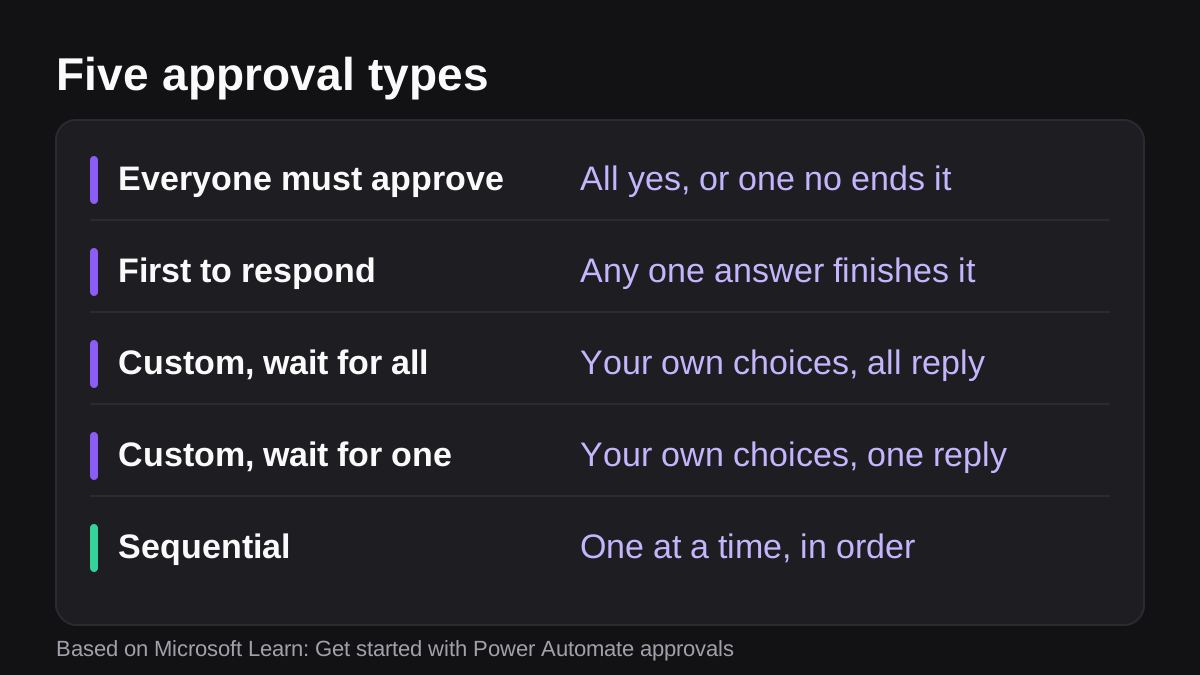
The type decides what happens after people respond, so it is worth choosing on purpose. Microsoft lists the types for the Power Automate action called Start and wait for an approval [2].
- Everyone must approve. Each approver gets Approve or Reject. The flow continues after all have responded, or as soon as one person rejects [2].
- First to respond. Approval or rejection by any one approver completes the request [2].
- Custom responses, wait for all. You define the choices, and all approvers must respond [2].
- Custom responses, wait for one. You define the choices, and a response from any one approver completes the process [2].
- Sequential approval. Approvals are requested one at a time, in a specific order, and each approver must respond before the request moves on [2].
Microsoft adds one detail that matters for risk. With Everyone must approve, if any approver rejects, the request is treated as rejected for all approvers [8].
When do you need a sequential approval?
Use it when a second person should only see the request after the first has cleared it. Microsoft's example is a company that requires pre-approval for invoices over $1,000 before the finance department can approve them [6]. Its walkthrough builds this for vacation requests: the flow sends the request to a pre-approver, emails the decision to the employee, and only then sends it to the final approver [6].
If one person can approve alone, do not add steps. Every extra approver slows the request down.
How do you automate approvals with Power Automate?
An approval in the app is manual to start. To make the start automatic, you build a flow. Microsoft says that when you submit an approval in a flow, approvers are notified and can review and act on it [2]. Popular uses include vacation requests, documents that need sign-off and expense reports [2].
Native approvals started from Teams trigger directly with the Power Automate infrastructure and do not need a flow with an approvals action. If you want custom pre-approval or post-approval actions, you can create a flow for your approval [4].
How to build a simple approval flow
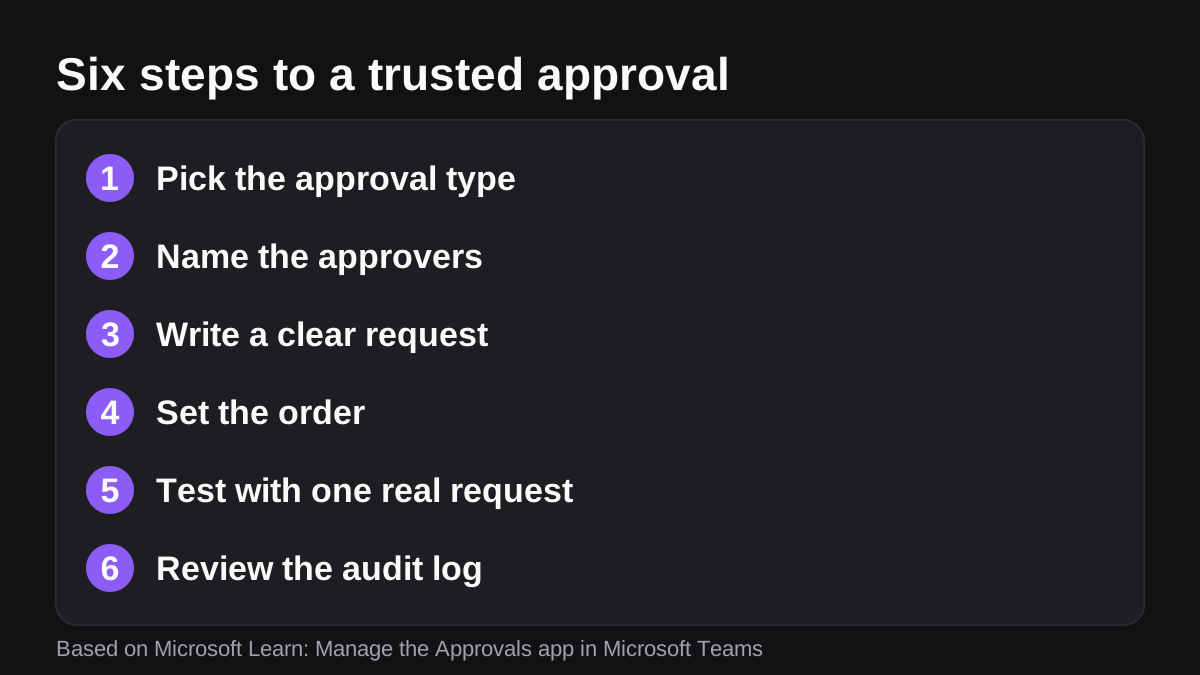
- Open Power Automate and create an automated cloud flow with a trigger that matches where requests begin, such as a new item in a list [6].
- Add the Start and wait for an approval action [2].
- Choose the approval type. The Approval type, Title and Assigned to fields are required [6].
- Fill in a clear title, the approvers and the details people need. You can use Markdown to format the details field [6].
- Add a condition that checks the response. Valid responses are Approve and Reject, and they are case-sensitive [6].
- Add the follow-up on each branch: tell the requester, then update the record or notify the next team [6].
- Test with one real request before anyone relies on it.
Before you start, check the prerequisites. Approval flows are saved in Dataverse, and you need a valid license to create flows [2]. In the default environment, the Dataverse database is created for you automatically [2]. Microsoft says any license that grants access to Power Automate and standard connectors is enough to create approval flows, such as Power Automate, Office 365 or a Dynamics 365 license with built-in Power Automate capabilities [2].
Who can approve, and where do they respond?
You can assign approvals to users in your environment or your Microsoft Entra tenant, including guest users and Microsoft 365 groups [2]. Guests who have not accepted the B2B invitation are removed from the approver list and do not take part [2]. After assignment, approvers can respond from an Outlook email, a Teams adaptive card or the Power Automate action center, if they have a suitable license [2].
For security, people only see what they should. Users cannot see approvals created by others unless they are a responder or a viewer [1]. A person gets the viewer role if they are part of the chat or channel where the approval was created, but they cannot act on it unless given that role when it was created [1].
What should you log, and who can see it?
An approval is only as good as its record. Teams helps here. The Approvals app logs audit events in the Microsoft Purview portal [1]. You can search for activities including created, viewed, approved, rejected, canceled, shared and reassigned requests, and files attached to a request [1]. Template changes are logged too: creating, editing, enabling or disabling, and viewing a template [1].
For deeper tracking in Power Automate, you can enable auditing in the default environment for the Approval, Approval Request and Approval Response entities [1].
There is one storage point to plan around. Approvals created from the app are stored in the default Dataverse environment, which does not support backups at this time [1]. Admins can set custom retention policies for data stored in Dataverse tables [1]. If approvals matter to your compliance, ask your admin what retention you need and set it before the first request, not after.
If you use a third-party e-signature provider with Approvals, you need a license for that provider, and the signed agreements are stored in the provider's cloud environment [1]. Your admin can turn Adobe Sign or DocuSign on or off for the app [1].
Where does an AI agent fit in approval automation?
Approvals are where AI work should usually end, not begin. An AI agent is good at the work before the decision: reading the request, pulling the numbers from your tools, drafting the summary and checking it against your policy. A person should make the decision on anything that spends money, sends something to a customer or changes a record.
That idea is not unique to Teams. NIST publishes an AI Risk Management Framework that it describes as intended for voluntary use, to better manage risks to individuals, organizations and society associated with AI [9]. A named human approver is one of the simplest ways to put that thinking into practice in a small company.
A concrete example: a sales manager asks for a discount above the usual limit. A good flow has the agent gather the deal value, the margin and the customer's history, then post a short summary and send it to the finance lead as an approval. The finance lead sees one card with the facts and presses a button. The audit log records who said yes.
Wopie works this way in Teams. You add it to a channel and give it a job, and it reads your connected tools, prepares the finished work and pauses anything sensitive, such as customer sends, payments and deletions, until a person you have named approves, edits or declines it in the thread. Every request, draft, approval and action goes to an audit log you can read and export. The security page explains the approval gates and audit trail, and the Teams page shows what a job looks like in a channel.
For the wider picture, see how to use AI in Microsoft Teams beyond Copilot, and how Copilot compares with an AI employee.
What are the common mistakes?
- Too many approvers. More names mean slower requests, and nobody feels responsible. Start with one approver per decision.
- Vague requests. An approver who has to ask three questions will leave it for tomorrow. Put the amount, the reason and the deadline in the title or first line.
- No fallback. If the approver is away, who is next? Name a backup before you need one.
- Unowned templates. A deleted or edited template breaks everyone's requests [1]. Give each template an owner.
- No review. Check the audit log after two weeks. Look for approvals that waited longest and decisions that were reversed.
What to do next
You can finish this in a week.
- Day one: Open the Approvals app and confirm it is enabled. If it is missing, ask your Teams admin [4].
- Day two: List the five requests that most often wait on someone. Pick the one that repeats most.
- Day three: Build a template for it, or a simple Power Automate flow if it needs to trigger another action [5][2].
- Day four: Choose the approval type on purpose: one approver, everyone, or in order [2].
- Day five: Ask your admin to confirm retention and audit settings [1].
- Next week: Send ten real requests through it, then read the audit log and fix what slowed people down.
When approvals are in good shape, you can let an agent prepare the requests. See which jobs to give an AI employee first, or look at how pricing works if you want to try it on one real job.
Put an AI employee in Microsoft Teams.
Wopie joins your Teams channels, takes on the reports and follow-ups, and checks with you before anything goes out.
See Wopie for TeamsSources
- [1]Manage the Approvals app in Microsoft Teams - Microsoft Teams · Microsoft Learn · accessed Oct 22, 2026
- [2]Get started with Power Automate approvals - Power Automate · Microsoft Learn · accessed Oct 22, 2026
- [3]Create an approval from the approvals app - Power Automate · Microsoft Learn · accessed Oct 22, 2026
- [4]Approvals in Microsoft Teams - Power Automate · Microsoft Learn · accessed Oct 22, 2026
- [5]Create an approval request with a template · Microsoft Support · accessed Oct 22, 2026
- [6]Manage sequential approvals with Power Automate - Power Automate · Microsoft Learn · accessed Oct 22, 2026
- [7]What is Approvals? · Microsoft Support · accessed Oct 22, 2026
- [8]Create an approval flow that requires everyone to approve - Power Automate · Microsoft Learn · accessed Oct 22, 2026
- [9]AI Risk Management Framework | NIST · National Institute of Standards and Technology (NIST) · accessed Oct 22, 2026