How to automate a weekly pipeline report from HubSpot
HubSpot pipeline report automation, step by step: schedule a native report, pull deals through the API, or hand the job to an AI employee in Slack.
By the Wopie team · October 30, 2026 · 10 min read
Listen to this article· 12 min

HubSpot pipeline report automation means your weekly pipeline numbers build and arrive on their own, so nobody spends Monday morning copying deals into a sheet. You have three ways to do it. HubSpot can email a saved report on a schedule [1]. A script can pull deals through the HubSpot API and post a summary [3]. Or an AI employee can read the pipeline, write the report with commentary, and wait for a person to approve it before it goes out.
The right route depends on whether you need only a table, or a table plus a verdict. This guide shows what each route can do, the limits that catch people out, and a six step method you can finish this week. It also lists what a good pipeline report contains, because a long report that nobody reads is no better than none.
Why automate the weekly pipeline report?
The pipeline report is the most common recurring chore in sales management. Someone exports deals, checks amounts, groups them by stage and writes a few lines about what changed. It is useful work, but most of it is assembly.
Salesforce surveyed 7,775 sales professionals across 38 countries between August and September 2022 and found that reps spend just 28 percent of their week actually selling [5]. The company says most of the rest goes on tasks like deal management and data entry [5]. That is a vendor survey from 2022, so treat the exact figure as a signal rather than a measure of your team. The direction is what matters: the time lost to admin is large, and a manual report is part of it.
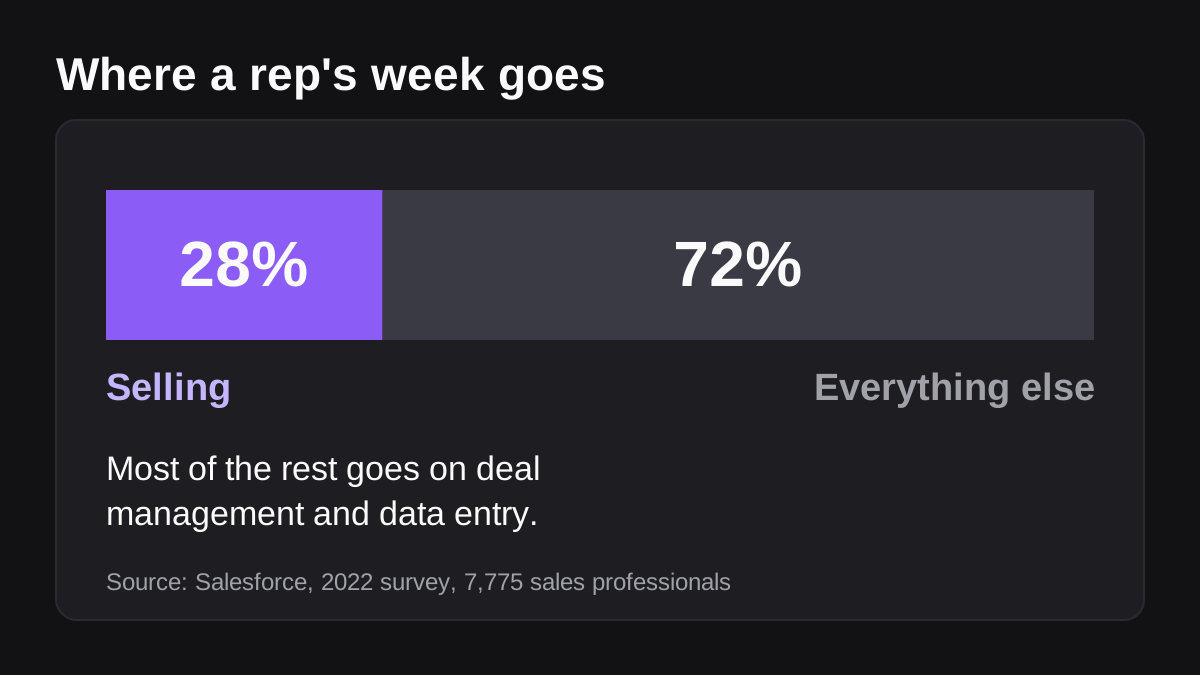
There is a second reason that matters more than the hours. A report that arrives at the same time every week becomes a habit. The team starts the week looking at the same numbers, in the same place, and the talk moves from "what is the number?" to "why did this deal stall?"
What should a weekly pipeline report contain?
Keep it to what a manager can act on in two minutes. Every extra row dilutes the one that matters.
- A one line verdict. Say whether pipeline grew or shrank against last week, in plain words.
- Total open pipeline and weighted pipeline. Weighted amount is a standard HubSpot measure: the deal amount multiplied by the deal probability [2]. Show both, so people can see how much of the total is optimistic.
- Deals by stage. A count and a value for each stage, in the order deals move through them.
- Deals due to close this period. The deals with a close date in the current month or quarter, with owner and amount.
- What moved. New deals, deals that advanced, deals closed won, deals closed lost, and deals that have sat in one stage too long.
- Two or three deals that need a decision. Name them, and say what you need from whom.
The fields behind all of this already exist on every deal. HubSpot's deals API exposes properties such as the amount, close date, deal name, deal stage, pipeline and owner [4]. If one of those fields is often empty on your deals, fix the habit before you automate. An automated report built on missing data produces confident wrong answers.
Which number is the most misunderstood?
Weighted pipeline. The weighted amount depends on the deal probability, and the probability depends on how your stages are set up. HubSpot's forecast tool lets you choose between weighted amount and, in older accounts, a manually set forecast amount [2]. If your stage probabilities are guesses, your weighted pipeline is a guess too. Review them once a quarter against what actually closed.
What are the three ways to automate a HubSpot pipeline report?
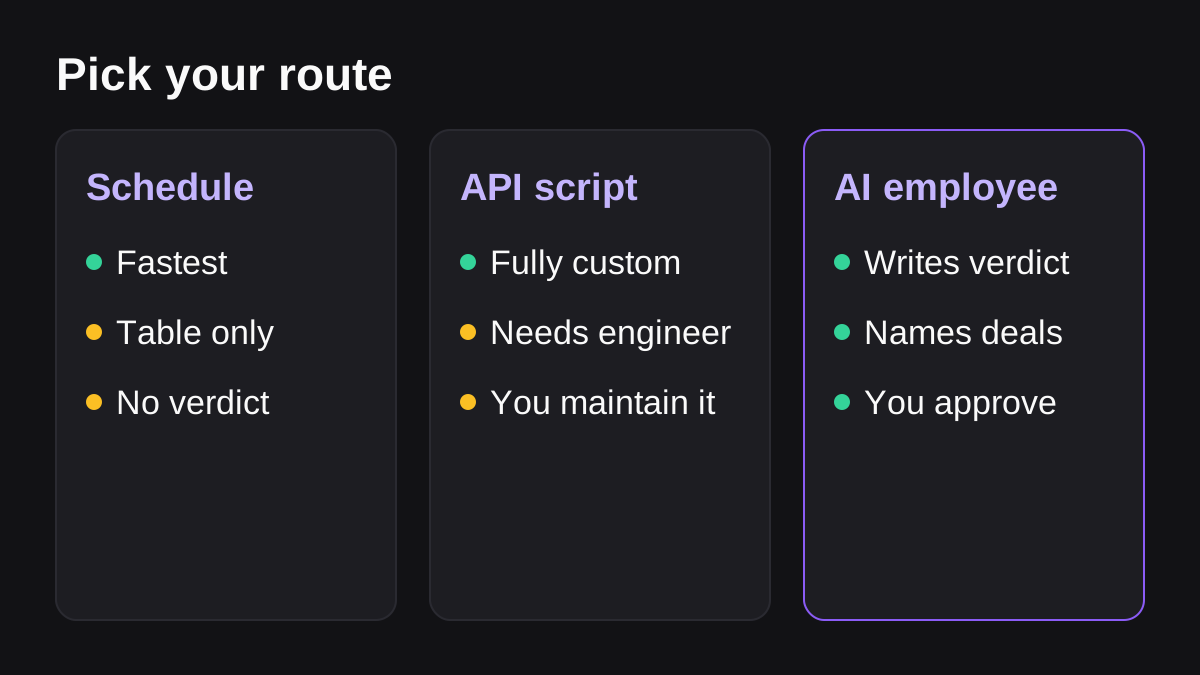
Each route sits on a ladder. As you go up, it does more of the work, and you supervise more.
| Route | What it does | Best for | Main limit |
|---|---|---|---|
| Scheduled HubSpot report | Emails a saved report or dashboard on a schedule | A table or chart that already exists in HubSpot | Recurring emails go to HubSpot users only, and there is no written commentary |
| Script through the API | Your code fetches deals, does the sums and posts a message | Teams with an engineer | Someone has to maintain it |
| AI employee | Reads HubSpot, writes the report with commentary, waits for approval | Reports that need a verdict and a few named deals | Needs a clear brief and a reviewer |
The next three sections take each route in turn.
Route 1: Schedule a report inside HubSpot
This is the fastest route, and for many teams it is enough. You build the report once, then schedule it.
HubSpot lets you share a report by email and mark it as recurring, then set a nickname, a schedule and a send time [1]. The schedule can be daily, weekly or monthly, and for weekly or monthly sends you choose the days or dates [1]. You can set up several recurring emails for a single report, so you could send a short version to the team and a fuller version to leadership [1]. Dashboards work in a similar way [1].
Know the limits before you rely on it:
- Recurring report and dashboard emails can only go to HubSpot users [1]. Your finance lead or an outside advisor without a seat will not get them.
- Report data is captured two hours before the scheduled send time [1]. A deal updated at 7:30 will not appear in an email scheduled for 8:00.
- To cancel a recurring email, you need to delete it at least two hours before it is due, or it still goes out [1].
- Only Super Admins or the owner of the report or dashboard can manage its recurring emails [1]. If the owner leaves, make sure someone inherits it.
The deeper limit is that a scheduled report is a table. It will not tell you that pipeline fell because two large deals slipped into next quarter. A human still writes that sentence.
Route 2: Pull deals through the API and post to Slack
If you have an engineer, you can fetch deals with HubSpot's search endpoint, add up the numbers and post a message to Slack with an incoming webhook.
HubSpot's search API has limits you should design around. It is rate limited to five requests per second per account, returns at most 200 objects per page, and caps any query at 10,000 total results [3]. Filters are limited as well: up to five filter groups, six filters in each group, and 18 filters in total [3]. A small company will rarely hit these. A company with years of old deals might, so filter to open deals rather than pulling everything.
On the Slack side, an incoming webhook is a unique URL that accepts a JSON message and posts it to a channel [6]. Slack warns that the URL contains a secret and must not be shared online, including in public code repositories, and says it actively searches out and revokes leaked secrets [6]. Webhooks also cannot delete a message after it is posted [6]. That matters for reports: if a script posts a wrong number to the whole channel, you cannot quietly pull it back through the webhook. This is a good reason to send the first few runs to the report owner only.
This route works well, but a script is software. It breaks when a stage is renamed, and the one person who wrote it becomes the only one who understands it. If you want a fuller comparison of ways to post reports into Slack, read how to automate reports in Slack.
Route 3: Let an AI employee build and post the report
The third route changes who does the assembly. Instead of building a pipeline of code, you describe the report in a channel the way you would brief a new colleague. An AI employee reads the connected tool, builds the numbers, writes the verdict and the deals-to-discuss list, and posts the result.
Wopie works this way. You mention it in a Slack channel with the job, it reads your connected tools, HubSpot among them, produces the finished report, and pauses anything sensitive for a person to approve. For a pipeline report, the sensible setup is to have it post the draft to the report owner first, who approves it before it reaches the wider channel.
It is not the right choice for every team. If your report is one saved view that never changes, route 1 is simpler and cheaper. If the report feeds a board pack or an audited figure, a script that does exactly the same thing every time is easier to defend. If you are weighing the cost, the pricing page shows how credits work before a job starts.
How do you set up an automated pipeline report, step by step?
Whichever route you choose, the same six steps make the report dependable. The figure below shows them in order.
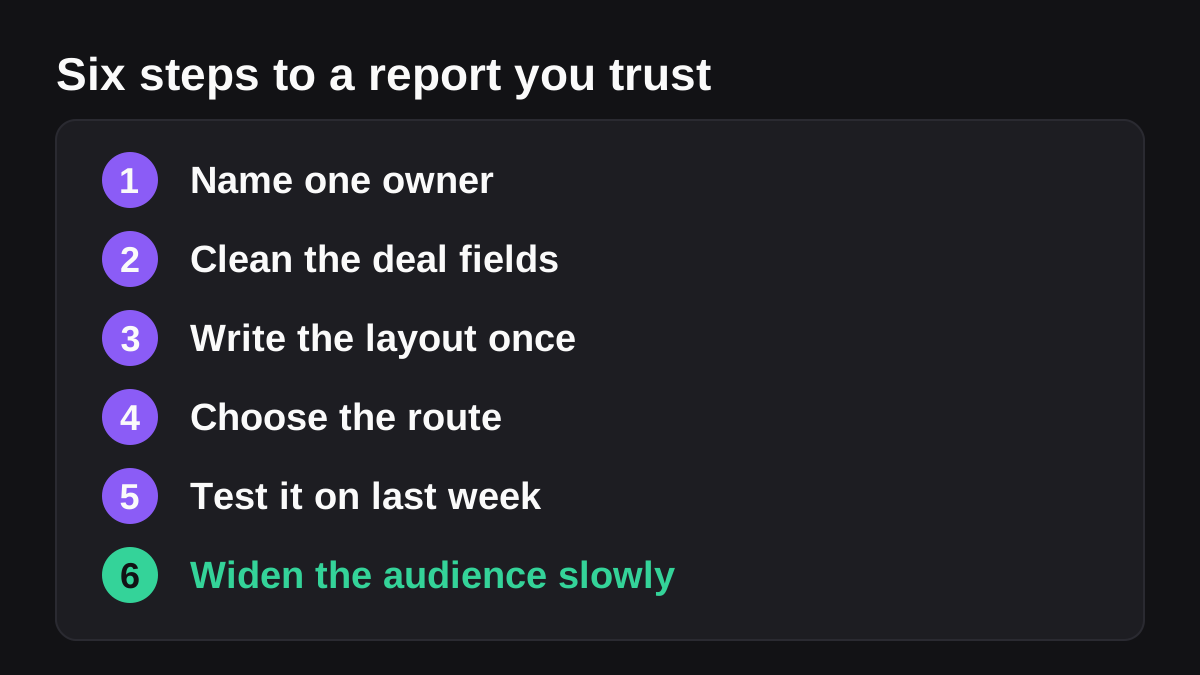
- Name one owner. One person is accountable for the report being right, usually the sales manager or RevOps lead. They approve the layout and answer when a number looks odd.
- Clean the fields it depends on. Check that open deals have an amount, a close date, an owner and the right stage. Ten minutes of cleanup here saves weeks of arguing about the numbers.
- Write the layout once. Use the six items from the section above. Keep the report short enough to read on a phone.
- Choose the route. Use the table above. Start with the simplest route that gives the team what they need.
- Test it on last week. Run the report against last week's data and compare it with the version you built by hand. If they differ, find out why before anyone else sees it.
- Widen the audience slowly. For the first three or four runs, send the report to the owner only. Once it has been right several weeks in a row, send it to the channel.
Write down the steps, the sources and the definitions as you go. A short written procedure also makes it easier to hand the job to an AI employee later, which is covered in how to write an SOP an AI agent can follow.
Where should the report land?
Put it where the pipeline conversation already happens. For most small teams that is a sales channel in Slack or Microsoft Teams. The report lands, someone replies in the thread, and the decisions are recorded in the same place as the numbers. An email in an inbox invites a private reply, and the discussion disappears.
What can go wrong with automated pipeline reports?
Most failures come from data, not from the automation.
- Stale deals. Deals that never get closed out inflate pipeline. Add a line to the report that lists deals with no activity or no movement for a set number of days.
- Probability that does not match reality. If a rep changes the stage probability by feel, weighted pipeline drifts from what you can expect to close.
- Silent changes. Someone renames a stage or adds a new pipeline, and the report quietly leaves deals out. Ask the owner to check the report whenever the pipeline settings change.
- Wrong audience. A report sent to a wide channel shows everyone everything the connected user can see. Choose carefully which account the automation uses.
- No review. An unattended report that is wrong for a month destroys trust in every report that follows.
That last point is about oversight. NIST publishes a voluntary AI Risk Management Framework to help organizations manage risks that AI poses to people and organizations [7]. Having a named person check automated output is a sensible habit at any size. That is my own advice, not a NIST rule, and this is general information rather than compliance advice. For more on approvals, see human in the loop AI and the approval gates and audit trail Wopie uses.
What to do next
Use this checklist to start:
- Pick the one pipeline and the one period the report covers.
- Name an owner and a back-up.
- Check that open deals have an amount, close date, owner and stage.
- Decide the six items the report will contain.
- Choose a route: scheduled report, script or AI employee.
- Run it on last week's data and compare it with your manual version.
- Send it to the owner only for three or four weeks.
- Then send it to the channel, and review the stage probabilities once a quarter.
If the report only needs to be a table, schedule it in HubSpot today and stop there. If you want the verdict and the deals to discuss written for you, try the AI employee route on one report first, and keep the approval step on. If your pipeline notes also need to flow back into the CRM, how to automate CRM updates covers that half of the loop.
Put an AI employee in your Slack.
Wopie joins your channels like any teammate, owns the recurring work and checks with you before anything sensitive goes out.
See Wopie for SlackSources
- [1]Share or export reports and dashboards · HubSpot Knowledge Base · accessed Oct 30, 2026
- [2]Set up the forecast tool · HubSpot Knowledge Base · accessed Oct 30, 2026
- [3]CRM Search API · HubSpot Developers · accessed Oct 30, 2026
- [4]CRM API | Deals · HubSpot Developers · accessed Oct 30, 2026
- [5]New Research Reveals Sales Reps Need a Productivity Overhaul: Spend Less than 30% Of Their Time Actually Selling · Salesforce · accessed Oct 30, 2026
- [6]Sending messages using incoming webhooks · Slack Developer Docs · accessed Oct 30, 2026
- [7]AI Risk Management Framework | NIST · National Institute of Standards and Technology (NIST) · accessed Oct 30, 2026