How to automate CRM updates so reps stop doing data entry
How to automate CRM updates: pick the fields, capture facts from emails and calls, draft changes for approval and audit them. Steps for HubSpot and Salesforce.
By the Wopie team · October 27, 2026 · 8 min read
Listen to this article· 11 min

To automate CRM updates so reps stop doing data entry, you capture facts where they already appear (emails, meetings, call notes, chat), turn them into proposed field changes, and let a person approve them in one click. You do not need reps to type anything. You do need rules about which fields can change, which source counts as proof, and who signs off.
This guide shows you how to do that in HubSpot or Salesforce, what the built-in tools handle on their own, where they stop, and how to keep your pipeline data trustworthy. Every figure and rule comes from a cited source. Where something is my own judgment, I say so.
Why do reps skip CRM updates?
Reps skip updates because the CRM is a place they report to, not a place they work. Typing notes after a call does nothing for the rep and a lot for the manager. So it gets pushed to Friday afternoon, and then to never.
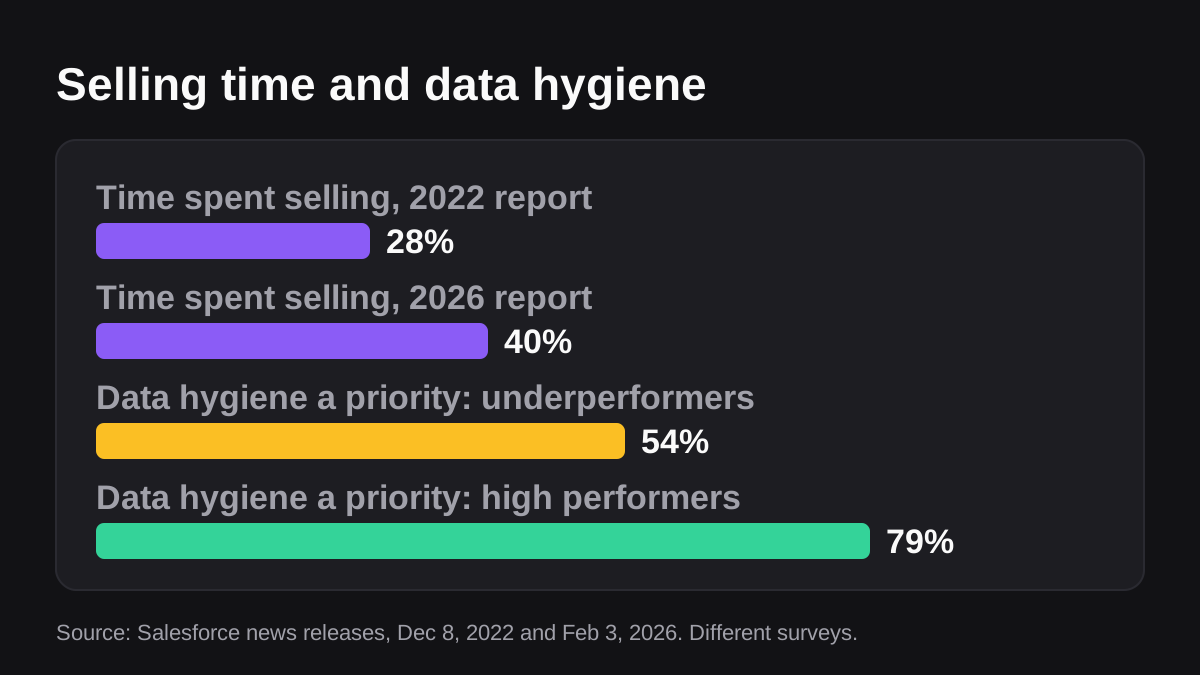
The time cost is real. Salesforce's research found that reps spend just 28 percent of their week actually selling, and that deal management and data entry are among the tasks that fill the rest [1]. In its 2026 State of Sales report, which surveyed 4,050 sales professionals across 22 countries, Salesforce found the average seller spends 40 percent of their time selling, and that Gen Z reps lose about two hours a week to manual data entry [2]. These are Salesforce surveys, so treat them as signals about the industry, not a measure of your team. The two reports also used different samples, so do not read the move from 28 to 40 percent as a trend.
The same 2026 report found that 79 percent of high performing teams prioritize data hygiene, against 54 percent of underperformers [2]. That is correlation, not proof that clean data causes better results. Still, it matches what most sales leaders see: forecasts are only as good as the fields behind them.
What does it mean to automate CRM updates?
It means a system writes to CRM fields so a person does not have to. There are three levels, and most teams end up using a mix.
- Logging. Emails, meetings and calls are attached to the right record automatically. Nothing is interpreted.
- Rules. If a trigger happens, a field changes in a fixed way. A form submission sets a lifecycle stage. A closed-won deal sets a renewal date.
- Reading and drafting. Something reads the content of an email thread or call notes, works out what changed, and proposes new field values. This is the level that removes most of the typing.
Level three is where AI helps, because the facts are buried in free text. It is also where mistakes can hide, which is why this guide spends time on approval and review.
What can HubSpot and Salesforce already do on their own?
More than most teams use. Before you add anything, check what you already own.
Email logging
HubSpot can log replies to emails you sent from the CRM, or from your connected work email with its extension. Its reply-only setting needs the original email to be sent through the CRM or logged, the address not to be on your never log list, your work email to be connected when the reply arrives, and the reply to keep the same subject line [7]. That last rule matters: a changed subject line can break the thread. HubSpot also caps combined attachments on logged outgoing emails at 20 MB [7].
Workflows
HubSpot workflows can set, clear or copy property values on a record or an associated one, using the Edit records action [4]. HubSpot suggests turning on re-enrollment to keep a copied value in sync, and adding a branch to confirm the source property has a value first, because an empty source can leave the target blank or cause an error [4].
The API
For anything custom, HubSpot's Contacts API lets you update a contact by record ID, or by email using the idProperty parameter. Batch updates need record IDs and are limited to 100 records at a time [3]. One catch worth knowing: if you update the lifecycle stage, you can only move it forward unless you clear the existing value first [3]. Salesforce has equivalent APIs and field history tracking, which I did not review for this guide, so check its documentation for the current limits.
The table shows where each approach stops.
| Approach | What it does well | Where it stops |
|---|---|---|
| Email and meeting logging | Records that a conversation happened | Does not read it or update fields |
| Workflows and rules | Reliable changes from a clear trigger | Cannot interpret free text |
| API scripts | Anything you can code | Needs a developer, and you maintain it |
| AI drafting with approval | Reads emails and notes, proposes field changes | Needs rules and review so it does not guess |
How do you automate CRM updates step by step?
Follow these five steps. They work with any CRM and any tool, including a person with a spreadsheet.
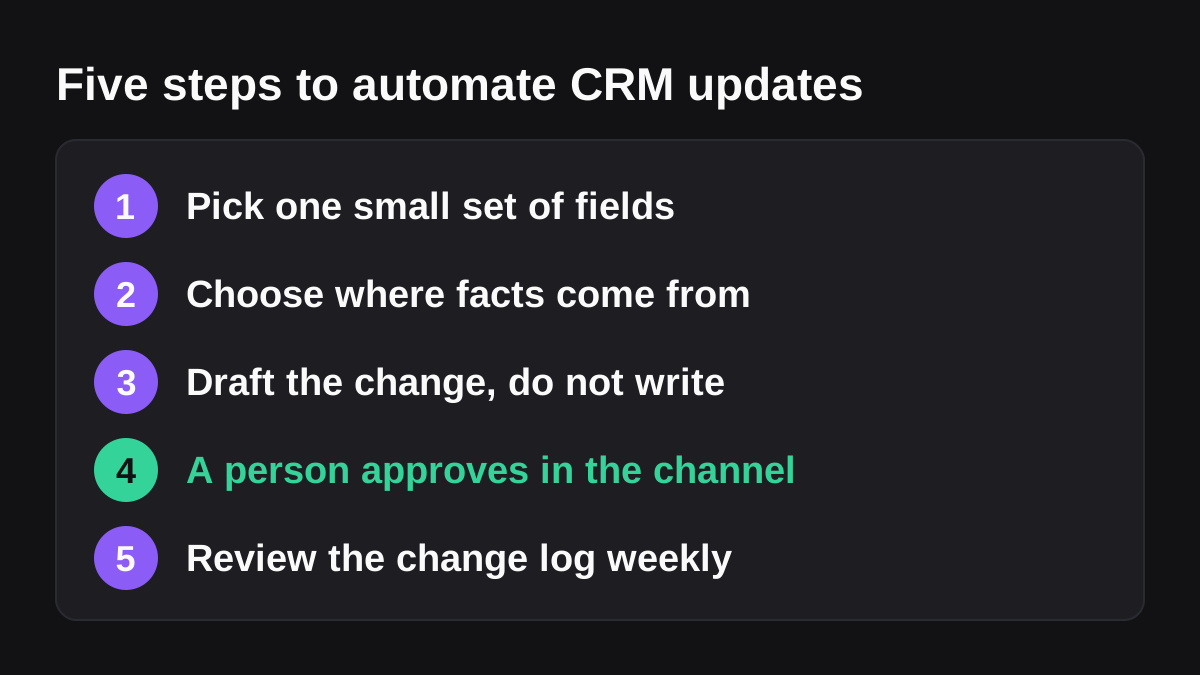
- Pick one small set of fields. Start with five to eight. Good first choices are next step, last contact date, meeting notes, contact job title and the primary contact on a deal. Leave amount, stage and close date for later, because those drive forecasts. This is my recommendation, not a platform rule.
- Choose where each fact comes from. Write it down. The next step comes from the last email or meeting summary. A job title comes from an email signature or a form. If a field has no clear source, it stays manual.
- Draft the change, do not write it. The first version of your automation should produce a proposed change: the record, the field, the old value, the new value and the evidence. Nothing is saved yet.
- Have a person approve in the place they already work. A rep taps approve in the Slack or Teams thread where the draft appears. That is a few seconds, not a few minutes of typing.
- Review the change log weekly. Look at what was approved, edited or rejected. Rejections tell you which rule or source is wrong.
What does a good proposed change look like?
Here is an example of the shape you want, written as it might appear in a channel:
"Acme Co deal. Proposed: next step changes from 'Send quote' to 'Book security review for Nov 12'. Source: email from the buyer on Tuesday at 3:14 p.m. Last contact date changes to Tuesday. No other fields changed. Approve or edit?"
It names the record, the fields, the old and new values and the source. A rep can check it in ten seconds. A draft that only says "updated deal" is not good enough.
How do you keep automated CRM data accurate?
Automation moves faster than people, so a mistake can spread faster too. Four rules keep it safe.
Record the source of every change
If a value cannot be traced, nobody can fix a wrong one. The UK Information Commissioner's Office, in its guidance on the accuracy principle, says that where data comes from someone else you should accurately record the information, accurately record its source, take reasonable steps to check it is accurate, and carefully consider any challenges to its accuracy [6]. It also says inaccurate personal data must be erased or rectified without delay [6]. That is UK data protection guidance, and CRM records hold personal data, so it is a useful standard even if you are not in the UK. This is general information, not legal advice.
Let the automation say "I don't know"
An AI that always fills the field is worse than one that sometimes leaves it blank. Tell it which fields need explicit evidence, and tell it to skip a field when the evidence is thin. A blank field is easy to see and fix. A wrong value looks like a right one.
Keep an approval step for fields that drive money
Amount, stage, close date and owner should wait for a human until you have weeks of evidence that the drafts are right. Lower-risk fields such as meeting notes can move to automatic writing sooner. The human in the loop guide explains how to decide where the line sits.
Respect the API limits
If you write your own scripts, note HubSpot's published limits. For privately distributed apps, the per 10 second limit is 100 requests on Free and Starter, and 190 on Professional and Enterprise, while the daily limit is 250,000 on Free and Starter, 625,000 on Professional and 1,000,000 on Enterprise [5]. Going over returns a 429 error [5]. A nightly batch of a few hundred updates sits comfortably inside these limits. A careless loop over your entire database does not. Limits change, so check the current page before you build.
Where does an AI employee fit?
The built-in tools log and move data on triggers. The missing piece is reading a messy email thread and turning it into five clean field changes. That is the job an AI employee suits.
Wopie is an AI employee that takes jobs in a Slack or Teams channel. For this job you would write something like: "After each customer call or email thread on my open deals, work out the next step and last contact date, and post the proposed HubSpot changes here for approval." It reads your connected tools, drafts the changes with the source, and pauses until a person approves. The approval gates and audit trail give you the record the accuracy rules above call for, and the Slack page shows what working in a channel looks like.
Be honest about where it does not fit. If your team has six open deals, a rep can update them in ten minutes a day, and a tool is overkill. If your CRM is full of duplicates and unused fields, fix that first. Which jobs to give an AI employee first is a good test.
What to do next
Use this short checklist this week.
- List the five to eight CRM fields reps update most often.
- Write the source for each field, and mark any field with no clear source as manual.
- Turn on email logging and check its rules, such as same subject line and the never log list.
- Add a simple workflow for one trigger that needs no interpretation.
- Pilot drafted changes with approval for one team for two weeks.
- Count approvals, edits and rejections, and fix the rule behind each rejection.
- Decide which low-risk fields can be written automatically, and keep money fields on approval.
If you want to try the AI route on one real pipeline, you can start a pilot with Wopie in a channel you already use. Begin with one team and a few fields, and widen it only once the drafts have earned your trust.
Put an AI employee in your Slack.
Wopie joins your channels like any teammate, owns the recurring work and checks with you before anything sensitive goes out.
See Wopie for SlackSources
- [1]New Research Reveals Sales Reps Need a Productivity Overhaul, Spend Less than 30% Of Their Time Actually Selling · Salesforce · accessed Oct 27, 2026
- [2]The Productivity Gap: New Survey Shows 9 in 10 Sellers Are Betting on AI and Agents To Help · Salesforce · accessed Oct 27, 2026
- [3]Contacts API · HubSpot Developers · accessed Oct 27, 2026
- [4]Edit records using workflows · HubSpot Knowledge Base · accessed Oct 27, 2026
- [5]API usage guidelines and limits · HubSpot Developers · accessed Oct 27, 2026
- [6]Principle (d): Accuracy · Information Commissioner's Office (ICO) · accessed Oct 27, 2026
- [7]Understand reply-only email logging rules · HubSpot Knowledge Base · accessed Oct 27, 2026