How to automate reports in Slack: four ways, and which to pick
How to automate reports in Slack: schedule a workflow, post from a tool, script it, or hand it to an AI employee. Steps, limits and a checklist.
By the Wopie team · October 16, 2026 · 11 min read
Listen to this article· 13 min

To automate reports in Slack, you pick a schedule, point it at the data, and choose the channel where the finished report should land. For a simple message you can do that with Slack's own Workflow Builder, which can start a workflow on a date, time and cadence you set [1]. For a report that needs live numbers from several tools, you need something that can fetch, calculate and write, such as a connected app, a small script or an AI employee.
This guide walks through all four routes, shows what each one can and cannot do, and gives you a five-step method you can follow this week. It also covers the mistakes that make automated reports untrustworthy, because a report people stop believing is worse than no report. Where a rule or figure comes from a source, it is cited. Where it is my own judgment, I say so.
Why automate reports in Slack at all?
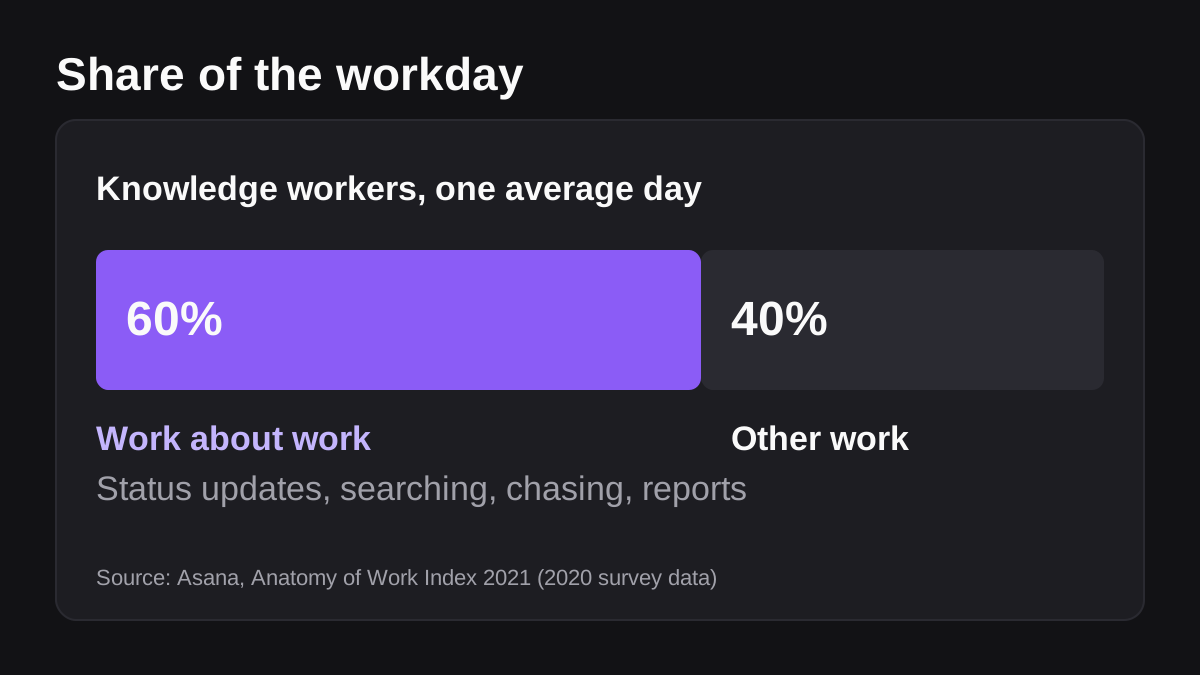
Reports are the clearest example of what researchers call work about work: time spent gathering, copying and chasing, rather than deciding. Asana's Anatomy of Work Index found that knowledge workers spend 60 percent of their day on work about work [6]. That survey covered more than 13,000 knowledge workers in seven countries and describes 2020, so treat the number as a signal rather than a precise measure of your team [6].
A weekly report is a small version of the same problem. Someone opens three tools, copies numbers into a sheet, writes two paragraphs, and posts it. It takes an hour, nobody enjoys it, and it slips when that person is on holiday.
Slack is the right place to put the output. The report lands where the team already talks, so questions and decisions happen in the thread under it. That is the real prize: not saving the hour, but moving the conversation to the moment the numbers appear.
What are the four ways to automate a report in Slack?
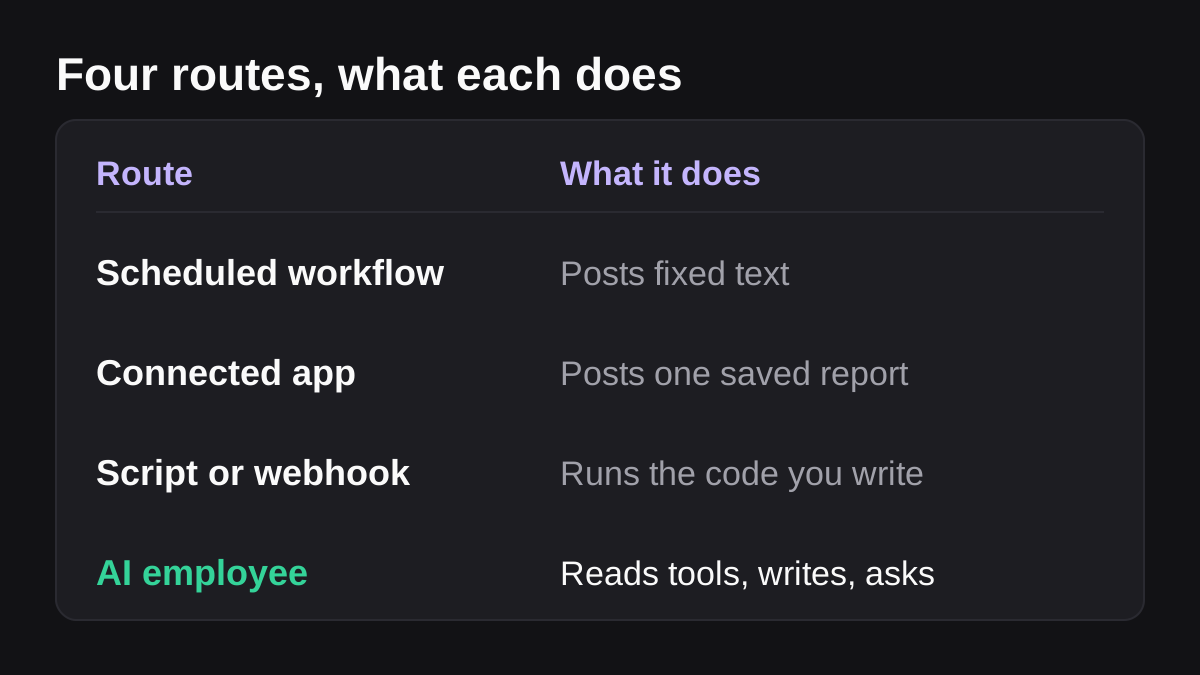
Each route sits on a ladder. The higher you go, the more it can do, and the more you have to supervise.
| Route | What it does | Best for | Main limit |
|---|---|---|---|
| Scheduled workflow | Posts a set message on a schedule | Reminders and fixed text | It does not build the report |
| Connected app | Posts a report from one tool on a schedule | A Salesforce or sheet report you already have | One source, fixed layout |
| Script or webhook | Your code fetches data and posts it | Teams with an engineer | Someone must maintain it |
| AI employee | Reads several tools, writes the report, waits for approval | Reports that mix sources and need commentary | Needs a clear brief and review |
Here is how each one works in practice.
Route 1: A scheduled workflow in Workflow Builder
Workflow Builder is Slack's no-code automation tool. You open it from Agents and tools in the sidebar, choose to build a workflow, and pick how it starts. One of the starting options is on a schedule, where you specify a date, time and cadence [1]. You then add steps, which run in the order you set, give the workflow a title and description, set who can use it, and publish it [1].
Two details matter. Workflow Builder is available on paid Slack plans [1]. And a message step that posts to a channel also needs posting permission in that channel [1].
On its own, a scheduled workflow posts what you tell it to post. That makes it perfect for a Monday prompt such as "Post your numbers in this thread by noon." It is not enough for a report whose numbers change every week.
You can bring data in through a Google Sheets step. Slack's help article describes connecting a Google account, choosing a spreadsheet and sheet, and saving the step [2]. Know the quirks before you rely on it. You can only connect one Google account to Slack at a time, and dates and times that Slack adds to a sheet use the UTC+0 time zone, which you cannot currently change [2]. If your team works across time zones, check every timestamp.
Route 2: A connected app that posts an existing report
Some tools have a ready-made way to push a report into Slack. Slack's own tip for Salesforce is a good example. You install an app called Centro, import a template into Workflow Builder, edit it for your team, and publish [3]. You set the day and time, connect to Salesforce using a Salesforce Automation User, choose the channel or direct message, and paste in the report ID from the Salesforce address [3].
The tip suggests examples by team: pipeline reports and inactive opportunities for sales, open and escalated cases for service, and forecast summaries and weekly activity for executives [3]. Reports can go to public channels, private channels or direct messages [3].
This route is quick when the report already exists in the source tool. The trade-offs are that you get one tool's layout, and what people can see depends on the permissions of the user you connect [3]. Choose that user with care, because a report posted to a wide channel shows whatever that user can see.
Route 3: A script, a webhook or the scheduling API
If you have an engineer, Slack's developer tools give you two building blocks.
The first is the incoming webhook, a unique URL that accepts a JSON message and posts it to a channel [5]. You create or use a Slack app, turn on incoming webhooks, add the webhook to a channel, and send a POST request with a text field [5]. Slack warns that the webhook URL contains a secret and must not be shared online, including in public code repositories [5].
The second is the scheduling method. The chat.scheduleMessage method queues a message for a future time using a Unix timestamp [4]. It has limits worth knowing: you can only schedule up to 120 days ahead, and you cannot schedule more than 30 messages to the same channel within a 5-minute window [4].
Notice what these do and do not do. They deliver a message. Your code still has to fetch the data, do the sums and write the text. That is fine for a team with an engineer who enjoys it. For everyone else it becomes a small piece of software that breaks when a field is renamed, and the person who wrote it is the only one who knows why.
Route 4: An AI employee that builds and posts the report
The fourth route changes who does the building. Instead of wiring a data pipeline, you describe the report in a channel, as you would to a new colleague, and an AI employee reads the connected tools, writes the finished report and posts it. If you want to see how that differs from a chatbot or a plain automation, read how AI agents differ from assistants.
Wopie works this way. You mention it in a Slack channel with the job, it reads your connected tools, produces the report, and pauses anything sensitive for approval. The Slack page shows what that looks like in a channel. It suits reports that mix sources and need a short written summary, which fixed templates handle badly.
It is not the right tool for everything. If the report is a single saved view in one system and never changes, route 2 is simpler and cheaper. If the report is a rigid regulatory filing, you want a deterministic script that does the same thing every time and can be audited line by line.
How do you set up an automated Slack report, step by step?
Whatever route you choose, the same five steps keep the result reliable. The figure below shows them in order.
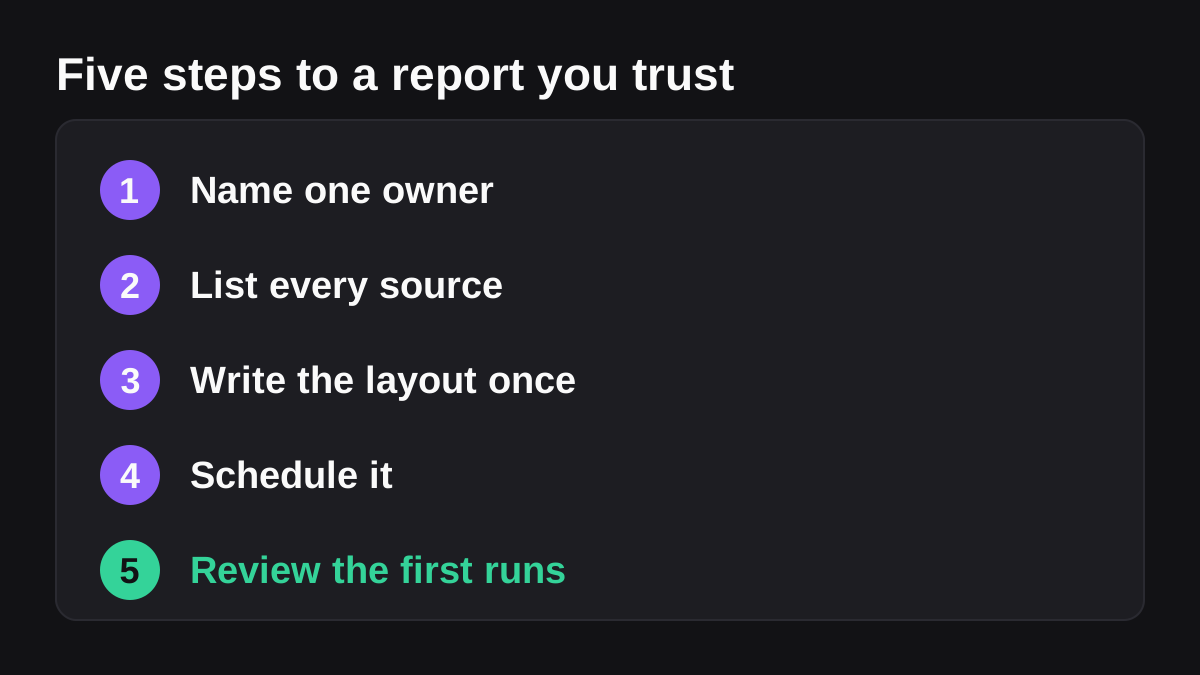
- Name one owner. Pick a person who is accountable for the report being right. Not a team, a person. They approve the layout and they get asked when a number looks odd.
- List the sources. Write down where each number comes from: the CRM, the billing tool, the support desk, a sheet. If a number has no clear source, drop it. This list is also your answer when someone asks, "Where did this figure come from?"
- Write the layout once. Decide the headline, the three or four numbers, the comparison to last week and the sentence of commentary. Short is better. A report that fits on a phone screen gets read.
- Schedule it. Pick the day and time people will actually read it. Monday at the start of the working day suits a weekly report. If your team spans time zones, post when the largest group is online.
- Review the first runs. For the first three or four weeks, send the report to the owner before it goes to the channel, and compare it with the old manual version. Fix the layout, then widen the audience.
There is a general reason to build in that last step. NIST publishes a voluntary AI Risk Management Framework for managing the risks AI poses to people and organizations [7]. Having a named person check automated output is a sensible habit at any size, and it is my own advice rather than a NIST rule. This is general information, not legal or compliance advice.
What should a good Slack report contain?
Keep the contents to what a reader can act on in a minute.
- A one-line headline. "Pipeline is up 8 percent on last week" beats a table with no verdict. Use your own numbers, not an invented example.
- Three or four numbers. Each with last week's figure beside it.
- One sentence on what changed. The reason, not just the movement.
- One question or action. "Who owns the three deals stuck in proposal?"
- A link to the source. So a doubtful reader can check in one click.
Because the report will be read in a thread, write it as you would say it to a colleague. Spell out the comparison in words instead of relying on a layout that only makes sense visually.
What goes wrong with automated reports, and how do you prevent it?
Automated reports fail quietly. Nobody sees a crash, they just see a number that is slightly off, and trust drains away. These are the problems I would plan for.
| Problem | How it shows up | Prevention |
|---|---|---|
| Time zones | A "Monday" report includes Sunday night's data | Fix the report's time zone in the brief; remember Slack-added sheet timestamps use UTC+0 [2] |
| Broken source | A renamed column or field returns blanks | Have the report say "no data" loudly, not post a zero |
| Wrong audience | A private figure goes to a wide channel | Post to a private channel first; check the permissions of the connected user [3] |
| Leaked secret | A webhook URL ends up in public code | Keep it in a secrets store, never in a public repository [5] |
| No owner | Everyone assumes someone else checks | Name one person in step 1 |
| Stale layout | The business changed, the report did not | Review the layout every quarter |
Should a person approve it before it posts?
For the first month, yes. After that, it depends on the stakes. A report that only goes to your own team can run unattended once it has been right for several weeks. A report that goes to customers, a board or a lender should keep a human approval step permanently.
This is the main reason to prefer a setup that pauses before sending anything sensitive. Wopie's approval gates and audit trail are built for that, so the report waits for a yes and there is a record of who gave it. The same logic applies if you build it yourself: add a review step before the last post.
Which reports should you automate first?
Not every report is a good candidate. A simple test: the report should repeat on a schedule, draw on the same sources each time, follow a layout you can describe, and be something a person finds tedious. Reports that need new judgment every time, such as a one-off investigation, stay with a person.
Good first choices include a weekly pipeline summary, a Monday operations brief, a support queue snapshot, a weekly cash position and a campaign results recap. For more help picking, see which jobs to give an AI employee first.
If you go with route 4, write the brief as you would for a new hire: what the report is for, who reads it, the sources, the layout, and what to do when data is missing. How to onboard an AI agent like a new team member covers that in detail. Wopie also shows an estimate of the credits a task will take before it starts, and its pricing page explains that you pay for finished jobs rather than seats, so a weekly report has a predictable running cost.
What to do next
Here is a short checklist for this week.
- Choose one weekly report that someone dislikes building.
- Name its owner and write the source for every number.
- Decide the route: workflow for a prompt, connected app for a single saved report, script if you have an engineer, AI employee if it mixes sources.
- Write the layout in five lines or fewer.
- Schedule it for the day and hour your team reads Slack.
- Send the first four runs to the owner for review before the channel.
- Put a quarterly reminder in the calendar to check that the report still matches the business.
If you want to try the AI employee route on a real report, you can start a pilot with Wopie in a channel you already use. Start small, keep a human in the loop, and widen the audience only once the report has earned it.
Put an AI employee in your Slack.
Give Wopie a job in any channel and get finished work back, with approval gates on anything sensitive.
See Wopie for SlackSources
- [1]Build a workflow: Create a workflow in Slack · Slack Help Center · accessed Oct 16, 2026
- [2]Use Google Sheets with Workflow Builder | Slack · Slack Help Center · accessed Oct 16, 2026
- [3]Schedule Salesforce reports in Slack | Slack Tips | Slack · Slack · accessed Oct 16, 2026
- [4]chat.scheduleMessage API method · Slack Developer Docs · accessed Oct 16, 2026
- [5]Sending messages using incoming webhooks · Slack Developer Docs · accessed Oct 16, 2026
- [6]Overcoming disruption in a distributed world: Insights from the Anatomy of Work Index 2021 · Asana · accessed Oct 16, 2026
- [7]AI Risk Management Framework · National Institute of Standards and Technology (NIST) · accessed Oct 16, 2026