How to automate overdue invoice reminders politely
Automate invoice reminders without damaging the relationship: a five step cadence, wording that works, and what to leave to a person.
By the Wopie team · November 2, 2026 · 9 min read
Listen to this article· 11 min
To automate overdue invoice reminders politely, set a short schedule of three messages, keep each one factual and friendly, include the invoice and a way to pay, and stop the moment the customer pays or replies. The software sends the messages. A person handles anything that is not a simple "we forgot."
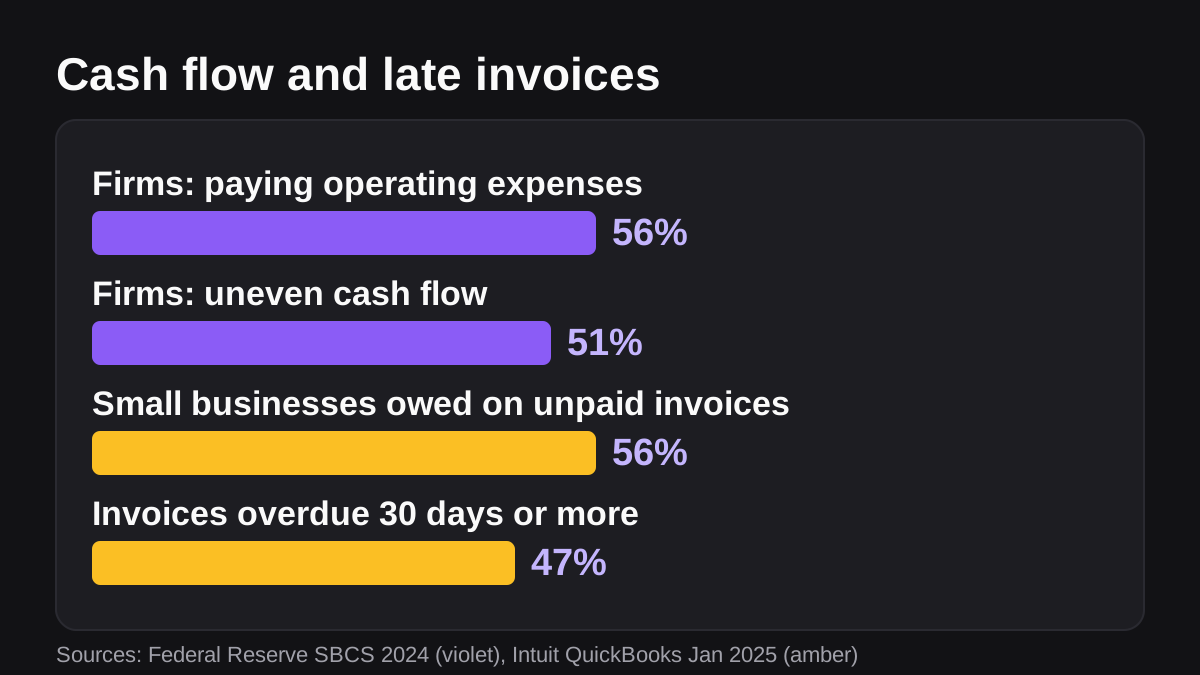
This matters because late payment is common. In a January 2025 survey of 2,487 US small businesses, 56% said they were owed money on unpaid invoices, and 47% reported invoices overdue by 30 days or more [1]. This guide covers the cadence, the wording, how to set it up in tools you probably already use, and where a person should take over.
Why do invoices go unpaid in the first place?
Most late invoices are not about refusal. They are about friction. The invoice went to the wrong inbox, the approver is on leave, the purchase order number is missing, or the payment link is buried in a PDF. A reminder that fixes friction gets you paid. A reminder that sounds like an accusation does not.
The cost of the delay is real. Among small business owners surveyed by the Federal Reserve Banks, 51% named uneven cash flow as a financial challenge, and the survey counts collecting on receivables as part of that [2]. Another 56% named paying operating expenses, with payroll, rent and inventory as the examples given [2]. Chasing invoices is not a side chore. It sits close to the center of whether the business can pay its own bills.
The average amount at stake is not small either. The Intuit QuickBooks survey found US small businesses with unpaid invoices were owed $17.5K each on average [1].
What makes a payment reminder polite?
Politeness here is not softness. It is clarity without blame. A polite reminder does four things.
- It assumes an honest mistake. "This may have slipped through" is true far more often than "you are late."
- It states the facts in the first lines: invoice number, amount, due date and how many days have passed.
- It makes paying easy, with a direct link or clear bank details and a copy of the invoice attached.
- It gives the customer an easy way to reply if something is wrong, such as a dispute, a missing purchase order or a change of billing contact.
Keep it short. A reminder is not the place for the history of the relationship. Use a plain subject line with the invoice number and the word "reminder." Intuit's own guidance for QuickBooks reminder subjects is to keep the word "reminder" in the line [3].
Three templates in plain language
Before the due date (optional). "Hi Dana, a quick note that invoice 1042 for $2,400 is due on the 15th. You can pay by card or bank transfer at the link below. Reply here if anything on the invoice needs changing."
A few days after the due date. "Hi Dana, invoice 1042 for $2,400 was due on the 15th and we have not seen payment yet. This may simply have crossed in the post. The invoice and payment link are below. If anything is holding it up, tell us and we will sort it out."
About two weeks after. "Hi Dana, I am following up on invoice 1042 for $2,400, now 14 days past due. Could you let me know when we can expect payment, or whether anything on our side needs fixing? I am happy to talk it through."
Read each one aloud. If you would not say it to the customer's face, rewrite it.
How often should reminders go out?
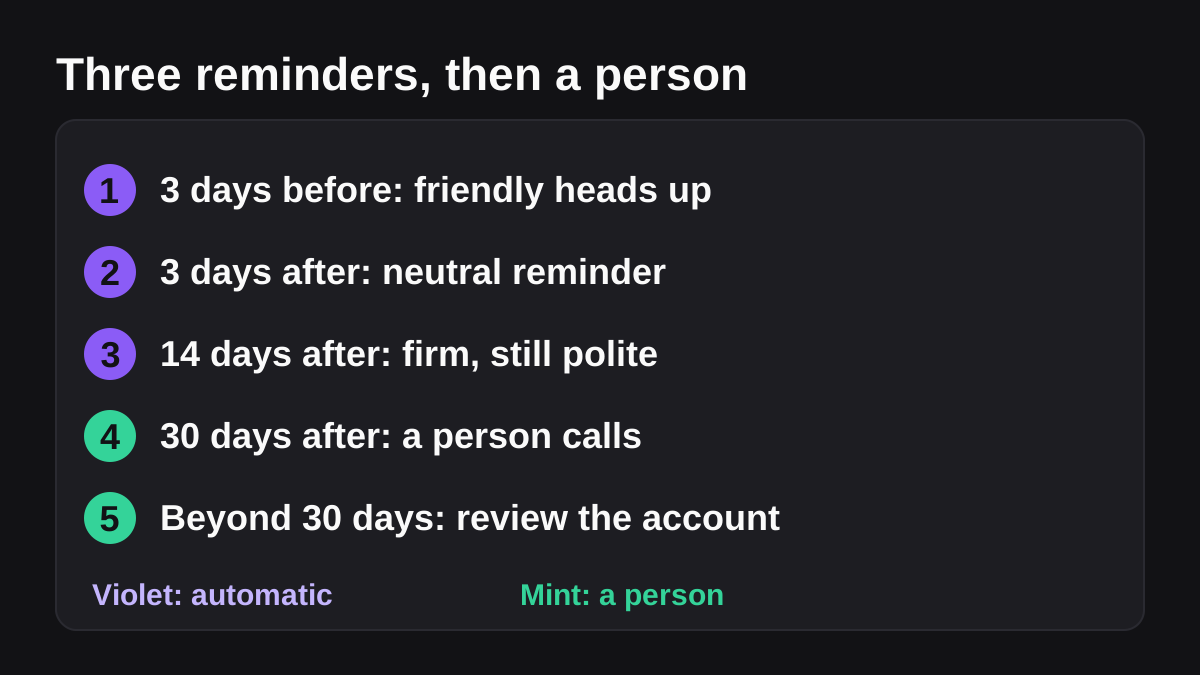
A good cadence is gentle early and firmer later, with a hard stop on automation. Here is one that suits most small teams. It is a starting point to adjust, not a rule.
| Timing | Message | Who sends it |
|---|---|---|
| 3 days before due | Friendly heads up with a payment link | Automatic |
| 3 days after due | Neutral reminder: this may have slipped | Automatic |
| 14 days after due | Firm, still polite: ask for a payment date | Automatic |
| 30 days after due | Personal email or phone call | A person |
| Beyond 30 days | Review the account, terms and next steps | A person |
The first three rows are repetitive and rule based, so software handles them well. The last two need judgment. A person can hear tone on the phone, notice that the customer is in the middle of a dispute, or decide that a long standing client deserves another week.
Most invoicing tools cap how many automatic reminders you can send. QuickBooks Online offers three reminders, each scheduled up to 90 days before or after the due date [3]. That fits the cadence above neatly.
How do you set up automatic invoice reminders step by step?
You can do this inside the invoicing tool you already pay for. The numbered steps below work in almost any of them.
- Clean the customer records first. Check that every customer has a correct billing email and, where needed, a purchase order reference. Automation will faithfully send messages to the wrong address if you let it.
- Write the three messages once. Use the templates above. Put the invoice number, amount and due date in the message as fields, so each one fills itself in. QuickBooks lets you include fields such as invoice number and company name in reminder text, and lets you edit the subject line and message [3].
- Pick the timing. Choose days before or after the due date for each reminder. In QuickBooks Online you open Settings, then Account and settings, then the Sales tab, then turn on the reminders [3].
- Know what triggers the reminder. In QuickBooks, a reminder is sent only when the invoice is unpaid and matches your settings, and only for invoices you have already emailed from the system [3]. Invoices created but never sent will never be chased.
- Send from a real address. Replies should reach a person. In Stripe, if you set up and verify a custom email domain, invoicing emails are sent from that domain [4].
- Test on one invoice. Send a test to yourself, read it on a phone, and check the payment link works.
- Review the overdue list weekly. Automation should shrink the list. Someone in finance should still look at what is left.
What Stripe and QuickBooks can and cannot do
Stripe can send reminders for recurring invoices that have not been paid, and lets you choose whether they go before, on or after the due date from a set of predefined options [4]. For a single one-off invoice you can trigger a reminder from the dashboard or the API, using the send invoice action [4]. If you want your own wording and logic, Stripe also sends webhooks when invoices are finalized, paid or marked uncollectible, so you can build your own emails [4]. Stripe also keeps logs of customer emails for the last 60 days [4].
QuickBooks keeps it simpler. You get three reminders, a template, and the 90 day window [3]. The limit is that every customer gets the same schedule. If your best client always pays on day 40 and you do not want them nudged, a fixed schedule is the wrong tool and you will need a person or a smarter workflow.
When should a person take over?
Do not let automation argue with a customer. These situations need a human:
- A dispute. If the customer says the work was wrong, the invoice is wrong or a promised credit is missing, stop reminders on that invoice at once.
- A reply with a date. If the customer promises payment on a date, pause the schedule and note the date.
- A key relationship. Large or long standing accounts deserve a call, not an email series.
- Anything legal. Late fees, interest, collections or threats of legal action need a decision from a person with authority, and often an adviser.
On the legal side, the details depend on where you and your customer are. In the United States, the federal Fair Debt Collection Practices Act is aimed at consumer debts, defined as obligations arising from transactions that are primarily for personal, family or household purposes [5]. A business to business invoice is generally outside that definition, but state laws and your own contract terms still matter. In the United Kingdom, if no payment date is agreed, a commercial payment is late 30 days after the customer receives the invoice or you deliver the goods or service, whichever is later [6]. This is general information, not legal advice. Ask an accountant or lawyer before you add fees or escalate.
This is the same principle behind any human in the loop design: let the software do the repeatable part and keep a person in charge of the decisions that carry risk.
Where does an AI employee fit in?
Native reminders are good at one thing: sending a fixed message on a fixed schedule. They cannot read the story behind an invoice. They do not know that a customer emailed your account manager yesterday promising payment on Friday.
That is the gap an AI employee can fill. Wopie is an AI employee that takes jobs in a Slack or Teams channel, reads your connected tools, produces finished work and pauses anything sensitive for human approval. For invoices, that could mean checking the list of overdue accounts in your accounting tool, drafting a tailored reminder for each one, and posting the drafts in a finance channel. A person approves the batch before anything is sent, using approval gates and an audit trail so there is a record of what went out and who agreed to it. Wopie works with the tools on its integrations page.
It is worth being honest about the limits. If you have fewer than ten overdue invoices a month, your invoicing tool's built in reminders are enough. An AI drafted message is most useful when you have many accounts, mixed payment terms or a lot of context to check before writing. The article on which jobs to give an AI employee first covers how to decide, and the guide to writing an SOP an AI agent can follow shows how to describe the chasing process so it behaves the same way every time.
What are the common mistakes?
- Reminding customers who already paid. Match payments before sending, and make sure a payment closes the invoice immediately. Few things annoy customers more.
- Sounding the same at every stage. Three identical messages feel like spam. Let the tone change as time passes.
- Hiding the payment link. If the customer needs to log in, hunt for a PDF or phone you, the reminder will sit in the inbox.
- Skipping the thank you. A short receipt or thanks once paid costs nothing and keeps the relationship warm.
- Setting it and forgetting it. Review the replies, bounces and disputes every week.
What to do next
Work through this checklist this week:
- Pick one invoicing tool as the place reminders come from.
- Fix billing emails and purchase order fields on your ten largest customers.
- Write the three messages and read them aloud.
- Turn on three reminders: 3 days before, 3 days after and 14 days after the due date.
- Decide who owns the account at 30 days overdue, and write their name down.
- After a month, compare how many invoices were paid late with the month before.
If you are not sure the cadence is right, change one thing at a time so you can see which change worked.
Bring Wopie onto your team.
It owns the recurring work and checks with you before anything goes out. Your first $100 of work is on us.
Hire for freeSources
- [1]2025 US Small Business Late Payments Report | Intuit QuickBooks · Intuit QuickBooks · accessed Nov 2, 2026
- [2]2025 Report on Employer Firms: Findings from the 2024 Small Business Credit Survey · Federal Reserve Banks · accessed Nov 2, 2026
- [3]Send invoice reminders automatically or manually in QuickBooks Online · Intuit · accessed Nov 2, 2026
- [4]Send customer emails · Stripe Documentation · accessed Nov 2, 2026
- [5]15 U.S. Code § 1692a - Definitions · Legal Information Institute, Cornell Law School · accessed Nov 2, 2026
- [6]Late commercial payments: charging interest and debt recovery: When a payment becomes late · GOV.UK · accessed Nov 2, 2026