The best ways to use AI in Slack: built-in tools, connected agents and AI employees
How to use AI in Slack: what Slack's built-in AI does on each plan, how outside agents connect, and when to hand real jobs to an AI employee.
By the Wopie team · October 17, 2026 · 10 min read
Listen to this article· 12 min
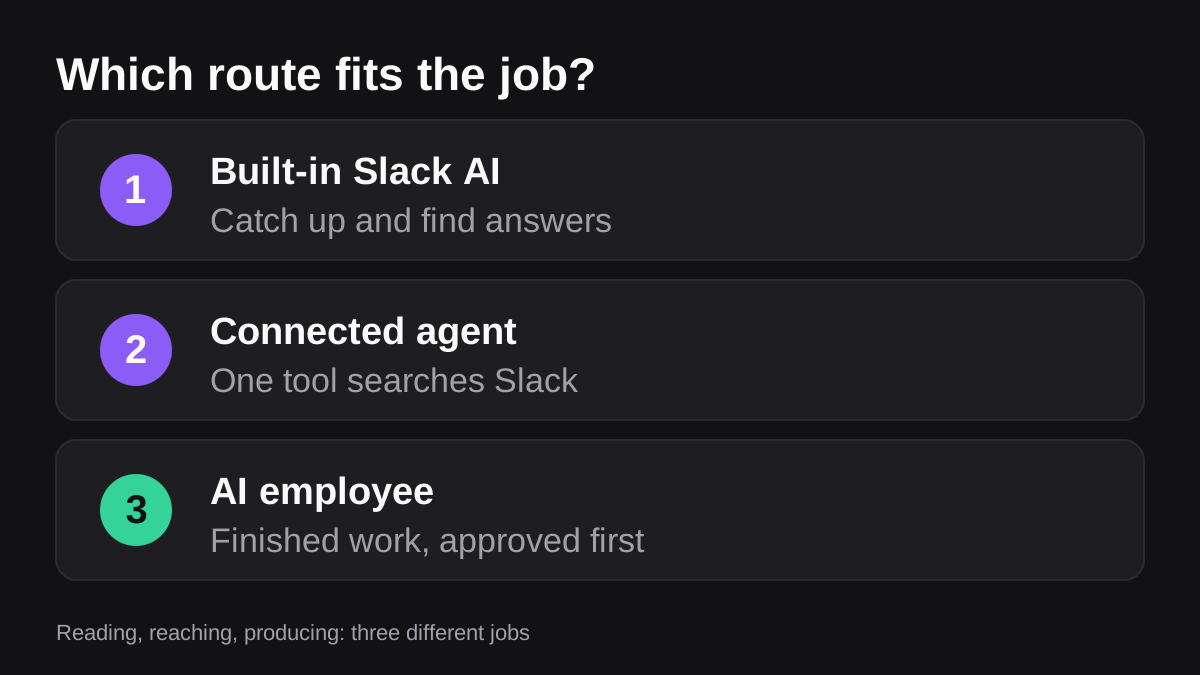
If you want to use AI in Slack, there are three routes, and they do very different jobs. Slack's built-in AI helps you read faster: it summarizes threads, answers questions from your message history and recaps channels. Connected agents let tools such as ChatGPT or Claude search and act in your workspace. An AI employee takes a whole job, such as a weekly report, and delivers the finished work for your approval.
The best way to use AI in Slack is to match the route to the job. Use the built-in tools to catch up, connect an outside agent when you want one specific tool to reach Slack, and give recurring work with several steps to an AI employee. This guide explains what each route does, what it needs, where the risks are, and how to start this week.
What can Slack's built-in AI do?
Slack's built-in AI is the easiest place to begin, because there is nothing to install. Slack's help center lists the features and the plans they come with [1]. The list is short enough to read in full.
On the Pro plan you get conversation summaries, huddle notes and automatic search filters [1]. Business+ adds search answers, recaps, file summaries, translations, workflow automation, canvas content generation and Slackbot [1]. Enterprise+ adds enterprise search on top [1].
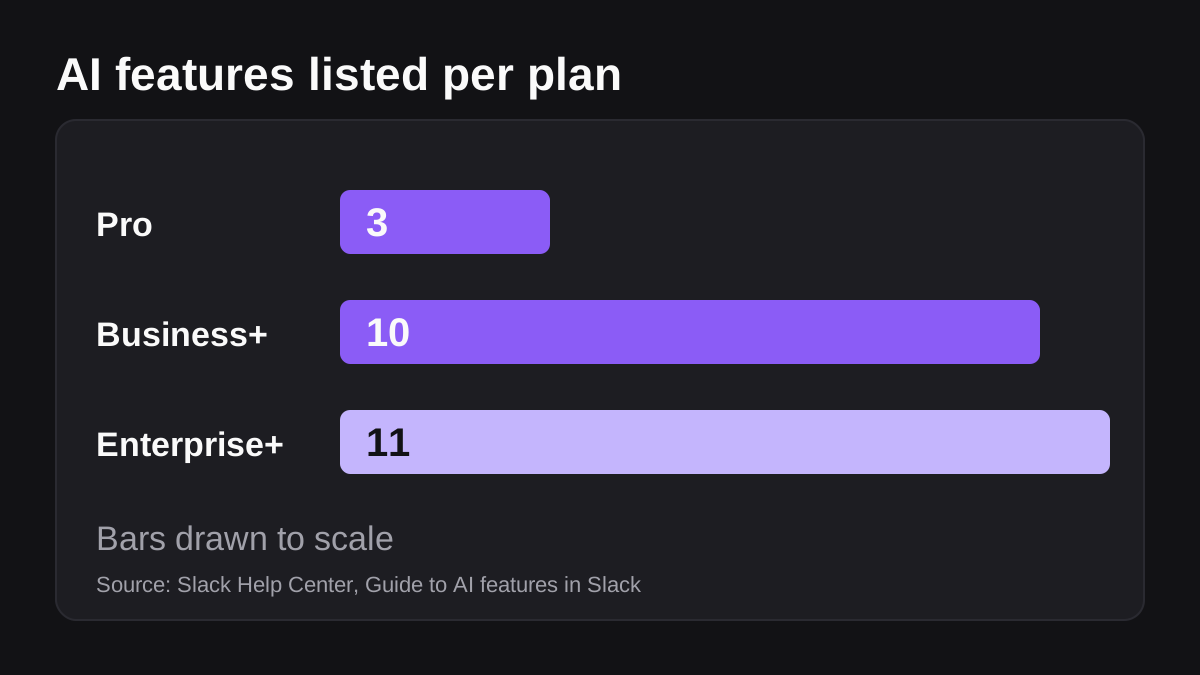
Here is what each feature does, in the words of Slack's own guide [1]:
| Feature | What it does | Starts on |
|---|---|---|
| Conversation summaries | Catch up on channels, direct messages or threads | Pro |
| Huddle notes | Takes notes during a huddle | Pro |
| Search answers | Gives a concise answer to a question, with citations to the source messages or files | Business+ |
| Recaps | Sends a daily summary of unread channels you choose | Business+ |
| File summaries | Summarizes shared PDF, Word, PowerPoint and Excel files | Business+ |
| Slackbot | A personal AI agent you can start a conversation with | Business+ |
| Enterprise search | Adds content from other sources, such as Google Drive and GitHub, to search | Enterprise+ |
A few details matter before you roll any of this out.
- Plans and roles decide what you see. Availability depends on your plan, your role as a member or guest, and whether admins have restricted access [1].
- It respects your access. Slack says AI responses only include information available to you [1].
- Some features have limits. Channel summaries cover unread messages, the last seven days or a custom date range, and the custom range is desktop only [1]. File summaries only appear for files that are accessible to everyone [1].
- Recaps are a morning habit. They are generated each morning and cover the previous day's activity [1].
The common thread is that these features read and condense. They save you time catching up. They do not build a report, chase an invoice or update a record. That is not a flaw. It is simply a different job from the one an agent does.
What should you use the built-in tools for?
Use them for reading work. A manager who returns from leave can summarize a busy channel instead of scrolling for an hour. A support lead can ask a question of past conversations and get an answer with links back to the messages. A founder can turn on a recap for the three channels that matter and skip the rest.
If you are not sure your team has permission to use AI at all, fix that first. Slack's own research found that workers at companies with defined AI guidelines were nearly six times more likely to have tried AI tools than those at companies with none [5]. A clear, short rule about what is allowed makes people use the tools safely rather than quietly.
How do other AI agents connect to Slack?
The second route is to let an AI tool you already use reach into Slack. Slack supports this through the Model Context Protocol, or MCP. Slack's developer changelog describes its MCP server as giving AI agents tools to discover, configure and run actions in Slack, and says it is built specifically for LLM consumption [3].
Slack's help center says the server provides AI agents with secure access to your workspace or Enterprise organization. A connected agent can search messages, files, members and channels, read channel history, send messages, and create or read files, canvases and lists [2]. The partner list on that page includes ChatGPT, Claude, Cursor, Perplexity and Notion, among others [2].
There is also a second connection point. The Real-time Search API lets third-party apps get relevant Slack data without storing customer information on their own servers [3]. Its permissions are split into scopes. Access to public channels is required, while access to private channels, direct messages and group direct messages needs separate scopes and user consent [3].
What is the catch with connected agents?
Connecting an agent gives it reach, so you should know who approved it and what it can do. Slack's MCP help page says little about admin controls for the server, and says that once an app with an MCP server is installed, anyone with access to Slackbot can interact with it [2]. It does not explain how access is scoped per user or channel [2]. So before you connect anything, ask your Slack admin three questions: who approved it, what scopes it holds, and whether it can send messages or only read.
This route is a good fit when you already pay for an AI tool and want it to answer questions about your Slack history. It is a weaker fit for recurring work, because each run still starts with a person asking.
When do you need an AI employee instead?
The third route is for work, not reading. An AI employee takes a job in a channel, gathers what it needs from your connected tools, produces the finished piece and waits for approval on anything sensitive. If you want the long version of how that differs from an assistant, read how AI agents differ from assistants and automation.
Wopie is built this way. You add it to Slack, invite it to one channel, and mention it with the work you would give a new hire. It reads your connected tools, finishes the job, and pauses anything sensitive for a human yes. The Slack page shows what a job looks like in a channel.
The jobs that suit this route share a pattern: they repeat, they draw on more than one system, and they end in a document or a message that a person would otherwise write by hand. Think of a weekly pipeline summary, a Monday operations brief, a month-end pack or a batch of overdue invoice reminders. For help choosing, see which jobs to give an AI employee first. If your goal is reports, how to automate reports in Slack compares the four ways to do it.
How do the three routes compare?
| Route | Best for | What it needs | Main limit |
|---|---|---|---|
| Built-in Slack AI | Catching up, finding answers | The right Slack plan | Reads and summarizes, does not produce work |
| Connected agent | Letting a tool you already use search and post in Slack | Admin approval and a clear scope | Each run needs a person to start it |
| AI employee | Recurring jobs that mix several tools | A written brief and an approver | Needs a clear brief and review |
AI is also the wrong tool for some work. If a task needs a legal opinion, a firm decision about a person or a figure that must be exact every time, keep a person in charge and use AI only to prepare the draft.
Is it safe to use AI in Slack?
Safe enough to start, as long as you decide the rules rather than inherit them. Three questions cover most of the risk.
Where does the data go? Slack says that AI in Slack uses third-party large language models hosted on its own cloud provider infrastructure, that the model providers do not have access to customer data, and that the models are not updated by customer requests [4]. It also says it will not use customer data to train generative AI models unless the customer gives affirmative opt-in consent [4]. Read the current page yourself, because these terms can change, and check the terms of any other agent you connect.
Who can see what? Built-in answers only include what the asking user can access [1]. Outside agents are different: their reach depends on the scopes and consent you grant, so review them [3].
Who is accountable? NIST publishes a voluntary AI Risk Management Framework to help organizations manage the risks AI poses to people and organizations [6]. You do not need a program to borrow its spirit. Name one person who owns each AI use, and keep a record of what the AI did.
This is general information, not legal or compliance advice. If you handle regulated data, ask your security or legal lead before you connect anything.
Why does approval matter for agents that act?
Reading is low risk. Sending is not. An agent that can post to a customer channel or change a record can make a mistake that is public or hard to undo. That is why the safest design pauses before anything sensitive and keeps a record of who said yes. Wopie's approval gates and audit trail work this way, and its pricing page says they come with the free plan, not only with Enterprise. Whatever you choose, ask the same question of any tool: what happens before it sends?
How do you start using AI in Slack this week?
Follow these steps in order. They keep the first month small and reversible.
- Write one rule. Say in a few lines what the team may and may not put into AI tools. Slack's research suggests clear guidelines go with more adoption [5].
- Turn on the reading tools. Ask your admin which of the features in the table are on for your plan [1]. Try summaries and search answers on one real channel.
- Find one slow job. Look for something that repeats, uses two or three tools and takes an hour. Slack's research found desk workers say they spend 41 percent of their time on low-value, repetitive or non-core tasks [5], so you will probably find several.
- Pick the route. If the job is reading, stay with built-in AI. If one outside tool needs Slack data, connect it with a reviewed scope. If the job produces finished work, brief an AI employee.
- Name the owner and the approver. One person checks the output. One person says yes before anything sensitive goes out.
- Review after four runs. Compare the AI output with the manual version, fix the brief, then widen the audience.
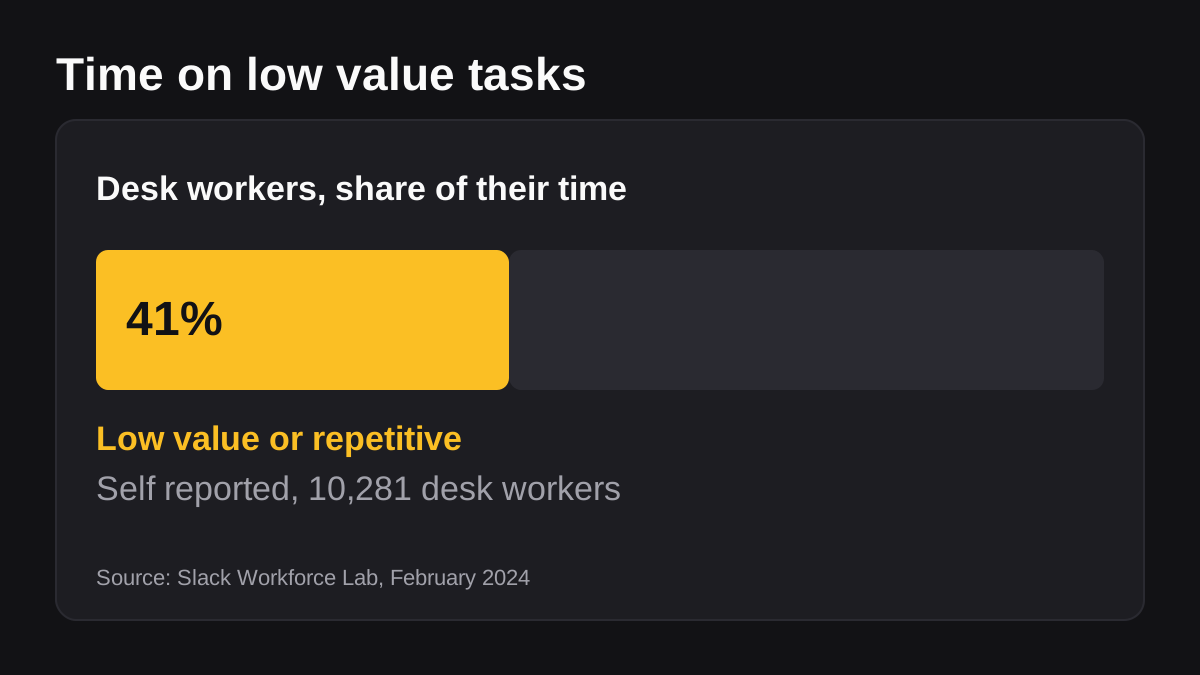
That 41 percent comes from a survey of 10,281 desk workers across six countries in January 2024, so treat it as a signal rather than a measure of your own team [5]. The same research found AI tool use had grown 24 percent over the previous quarter, and that around 80 percent of people using AI said it was already improving their productivity [5]. Those are self-reported views, which is another reason to compare with your own manual version before you trust a result.
What to do next
- Check which AI features your Slack plan includes [1].
- Write a short rule on what may go into AI tools.
- Try summaries and search answers on one busy channel for a week.
- Ask your admin what any connected agent can read and send [2].
- Choose one repeating job that mixes tools, and write the brief as you would for a new hire.
- Decide who approves anything that leaves the building.
- Review the results after four runs before widening.
If you want to see the AI employee route on a real job, you can start a pilot with Wopie in a channel you already use. Begin with one job, keep a human in the loop, and add more once the first one has earned your trust.
Put an AI employee in your Slack.
Wopie joins your channels like any teammate, owns the recurring work and checks with you before anything sensitive goes out.
See Wopie for SlackSources
- [1]Guide to AI features in Slack · Slack Help Center · accessed Oct 17, 2026
- [2]Guide to Model Context Protocol in Slack · Slack Help Center · accessed Oct 17, 2026
- [3]Announcing the Slack MCP server and Real-time Search API · Slack Developer Docs · accessed Oct 17, 2026
- [4]Privacy Principles: Search, Learning and Artificial Intelligence · Slack · accessed Oct 17, 2026
- [5]New Slack research shows accelerating AI use and quantifies the work of work · Slack · accessed Oct 17, 2026
- [6]AI Risk Management Framework | NIST · National Institute of Standards and Technology (NIST) · accessed Oct 17, 2026